Form Responses
Every fill of a form — finished or not — lands in that form's responses dashboard the moment the first answer is given. Click a form's card on the Forms page to open it (the pencil icon is what opens the editor instead).
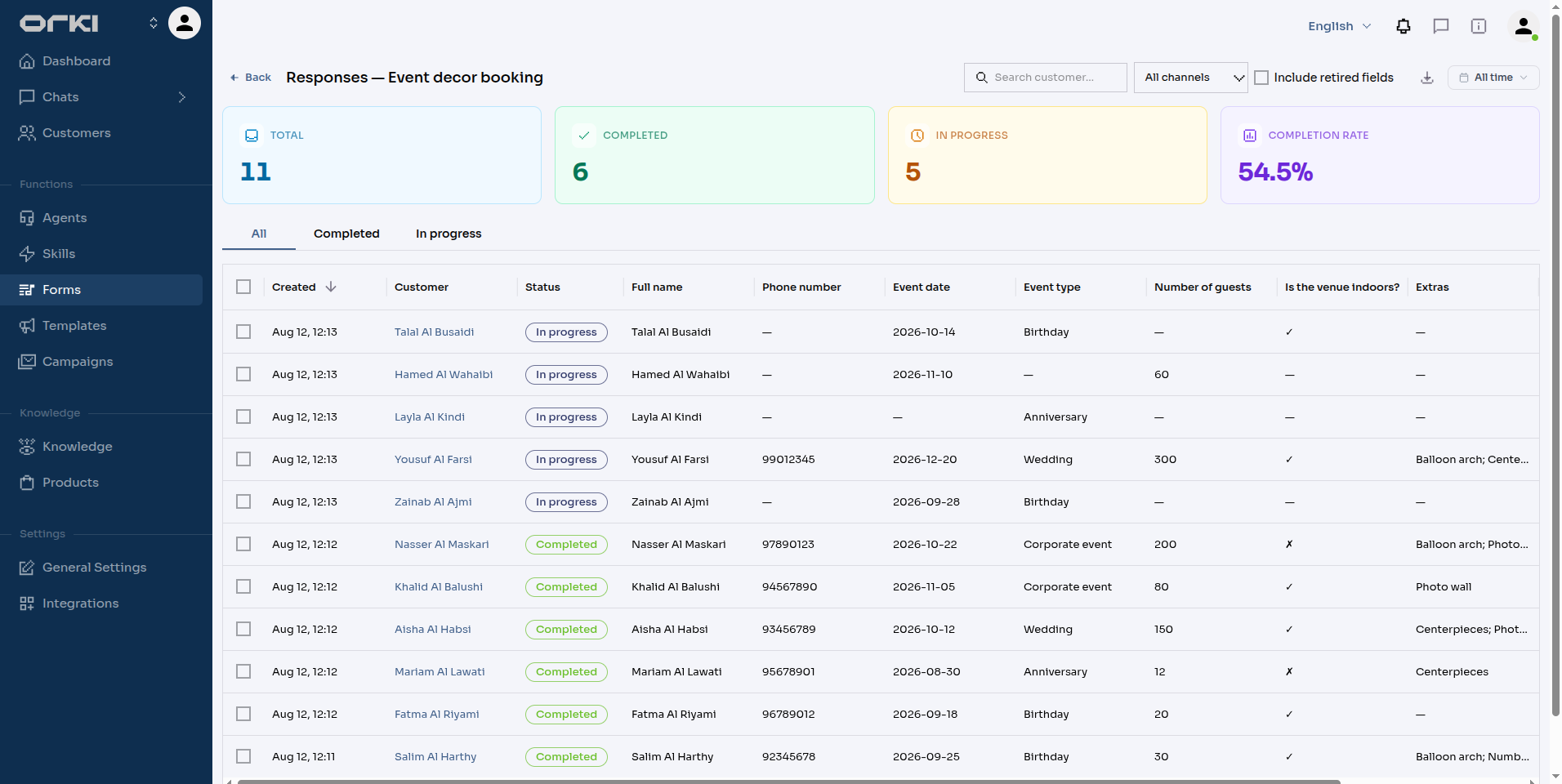
Across the top: Total, Completed, In progress, and Completion rate for the current date range. Below, one row per response with a column for every field, plus Customer, Status, Channel, and Created.
A response appears as In progress from the customer's first answer, not when they finish. That means abandoned fills aren't lost — you see exactly what was captured and where they stopped.
Filtering and Sorting
| Control | What it does |
|---|---|
| All / Completed / In progress tabs | Filter by status. |
| Channel | Only responses collected on that channel — WhatsApp, Instagram, Web, Playground, or Email. |
| Search customer… | Match on customer name. |
| Date presets | All time, Today, Last 7 days, Last 30 days, or a custom range. |
| Column sort | Click Created, Status, or Channel to sort server-side — it holds across pages. |
Filters live in the URL, so a filtered view can be bookmarked or shared with a teammate.
Reading a Response
Click a row to open the detail drawer: every answer (including retired fields), plus the customer, timestamps, and how it was collected.
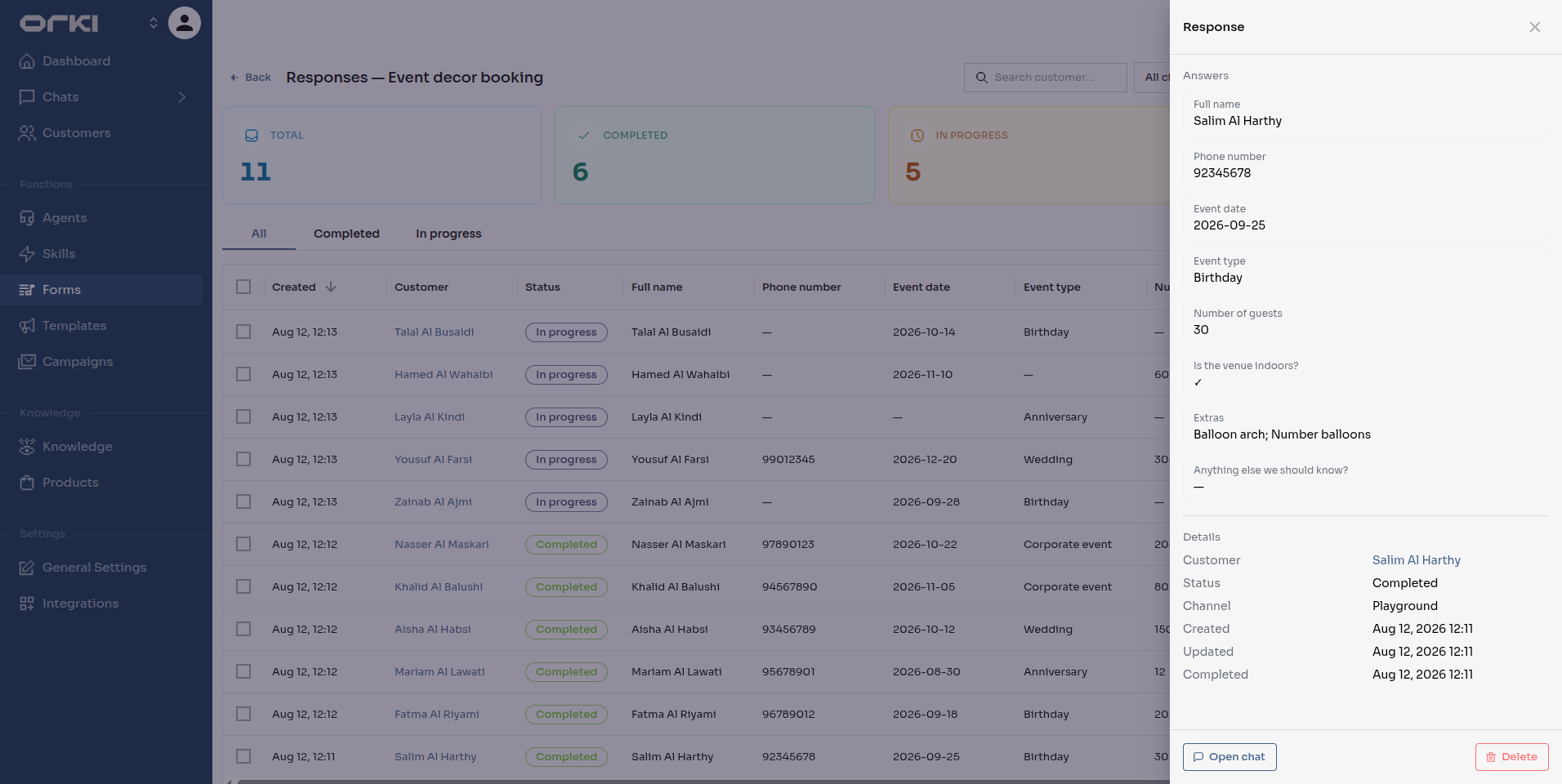
- The customer name — in the grid and in the drawer — links to the customer profile.
- Open chat jumps to the exact conversation where the form was filled, so every answer keeps its context.
- Delete removes this one response (with a confirmation — it cannot be undone).
Repeat submissions are separate rows: if a customer books two events, you get two responses, each tied to its own conversation.
Exporting to CSV
Export CSV downloads the current status tab and date range as a spreadsheet — Excel-ready, Arabic-safe. Toggle Include retired fields first if you need columns for fields that have since been removed from the form.
The channel filter and customer search apply to the grid, not the file. An export is the full data for the chosen status tab and date range.
Cleaning Up Playground Data
Rehearsing in the playground creates real response rows tagged with the Playground channel. Before the form goes live — or any time test data piles up — clear them in one sweep:
- Set Channel to Playground
- Tick the header checkbox to select every row on the page
- Click Delete selected in the toolbar that appears
- Confirm — "Delete N responses? This cannot be undone."
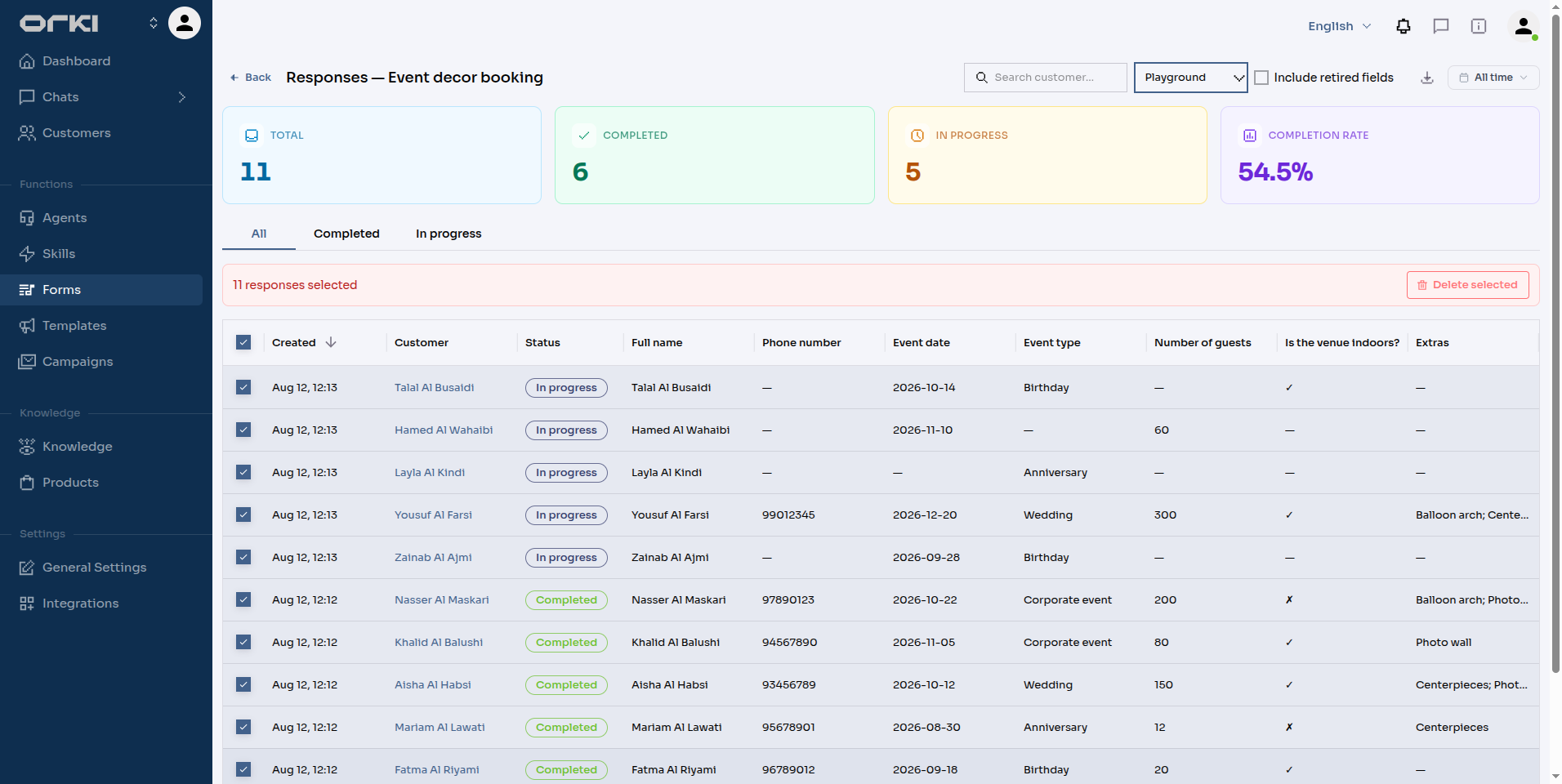
The same selection flow works for any cleanup, not just playground rows — filter first, select all, delete.
Bulk deletion cannot be undone, and it doesn't pause for status — In progress rows in the selection are deleted too. Export first if in doubt.
Troubleshooting
| Symptom | Cause | Fix |
|---|---|---|
| A response is missing columns you expect | The fields were added after this response was collected | Old responses simply have no answer for newer fields |
| Columns you removed still show in the CSV | Include retired fields is on | Turn the toggle off for a current-fields-only export |
| The grid shows fewer rows than the stats | A channel filter or customer search is active | Stats follow the date range; clear the other filters to reconcile |
| A customer appears twice | They submitted the form twice — each completed fill is its own row | Expected; turn on One response per customer on the form if that's unwanted |
Next Steps
- Building a Form — fields, types, and the toggles that shape collection
- Collecting a Form in Conversation — assignment, prompting, and the playground rehearsal
- Customer Profile — where the customer link on each row leads