Building a Form
A form is a set of fields — name, date, choices, numbers — that your AI agent collects from a customer conversationally. There is nothing for the customer to click or fill in: the agent simply asks in the flow of the chat, and Orki saves each answer as it arrives. Every submission is stored as its own response with a link back to the exact conversation, so repeat submissions never overwrite each other.
For Balloon Bliss, that means Bella can take a complete Event decor booking — date, guest count, venue, extras — while chatting about balloon arches, and the team sees a tidy response row for every booking request.
Custom attributes describe the customer — one value per customer, updated in place (their city, their tier). A form describes an event: each fill is a separate record. Use attributes for facts about people, forms for bookings, requests, signups, and feedback.
Where to Find It
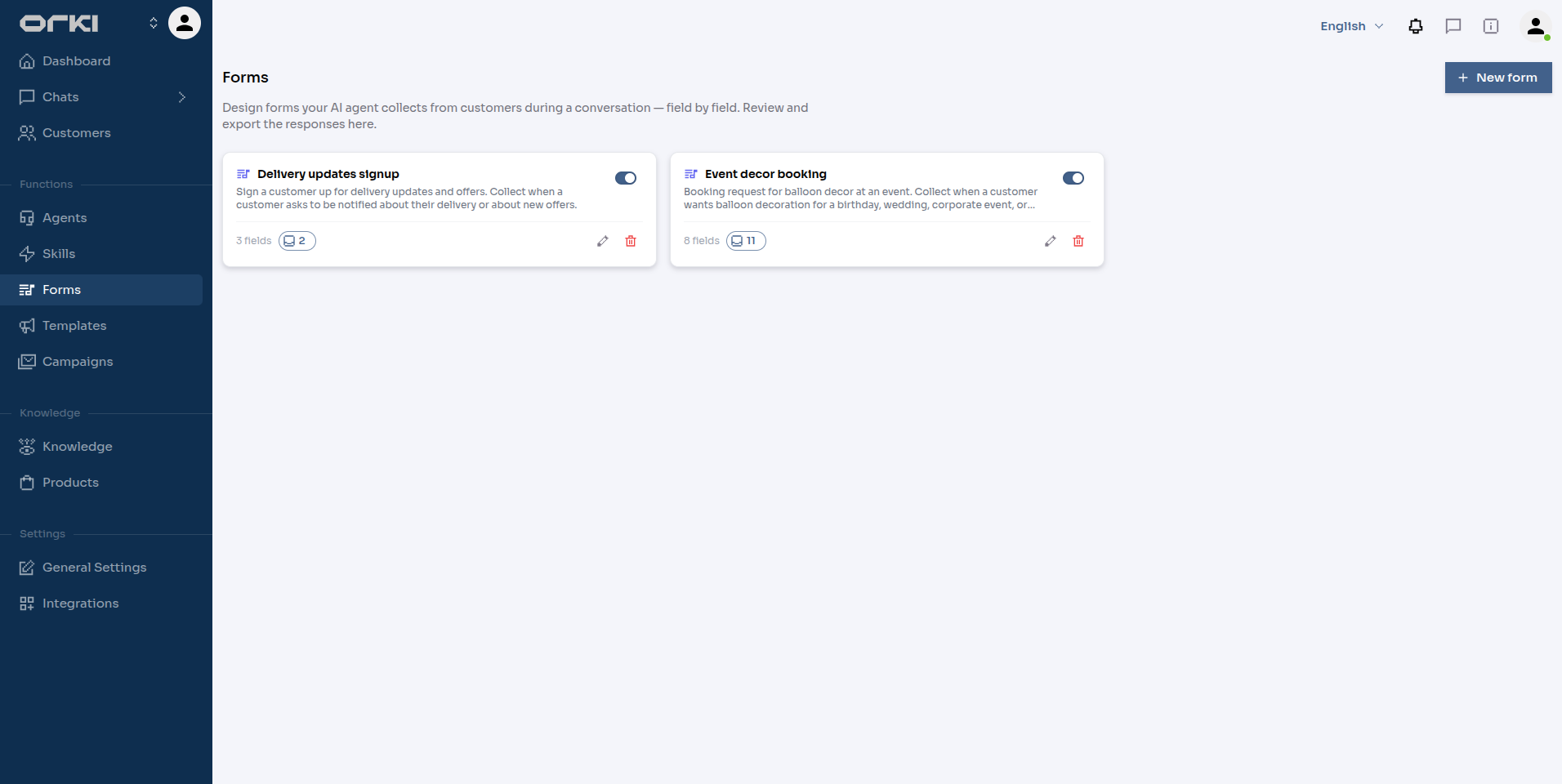
Forms in the sidebar (under Functions). The page lists every form with its status, field count, and response count. Click a card to open its responses; the pencil icon opens the form editor.
Creating a Form
- Click New form
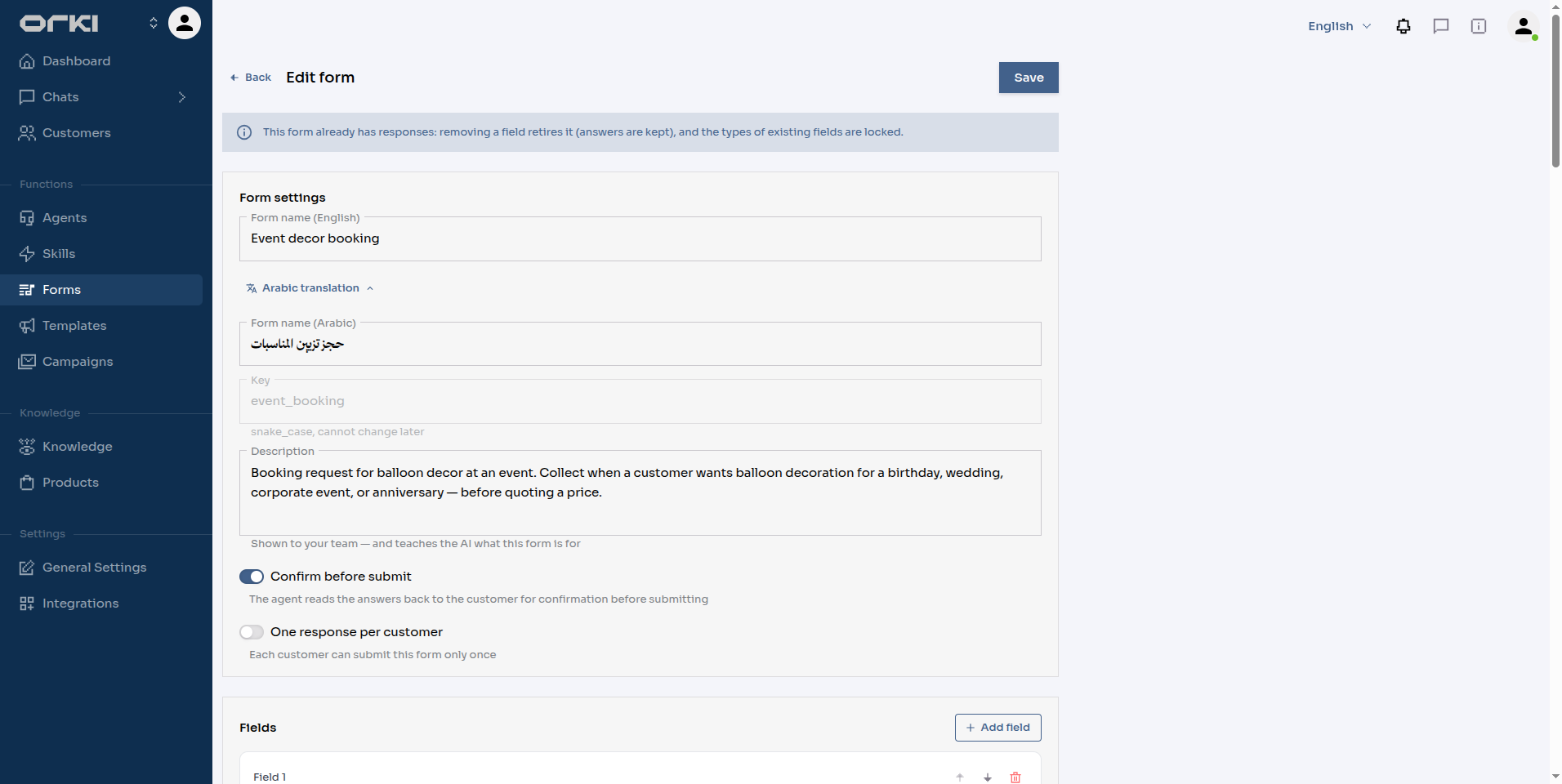
- Fill in Form settings:
| Field | What it means |
|---|---|
| Form name (English / Arabic) | Shown to your team and used by the agent to refer to the form. |
| Key | A snake_case identifier (event_booking). Lowercase letters, digits, and underscores; cannot change later. |
| Description | Shown to your team — and teaches the AI what this form is for. This is the most important field: write when the agent should collect it (see prompting the agent). |
- Add Fields — one per answer you want captured:
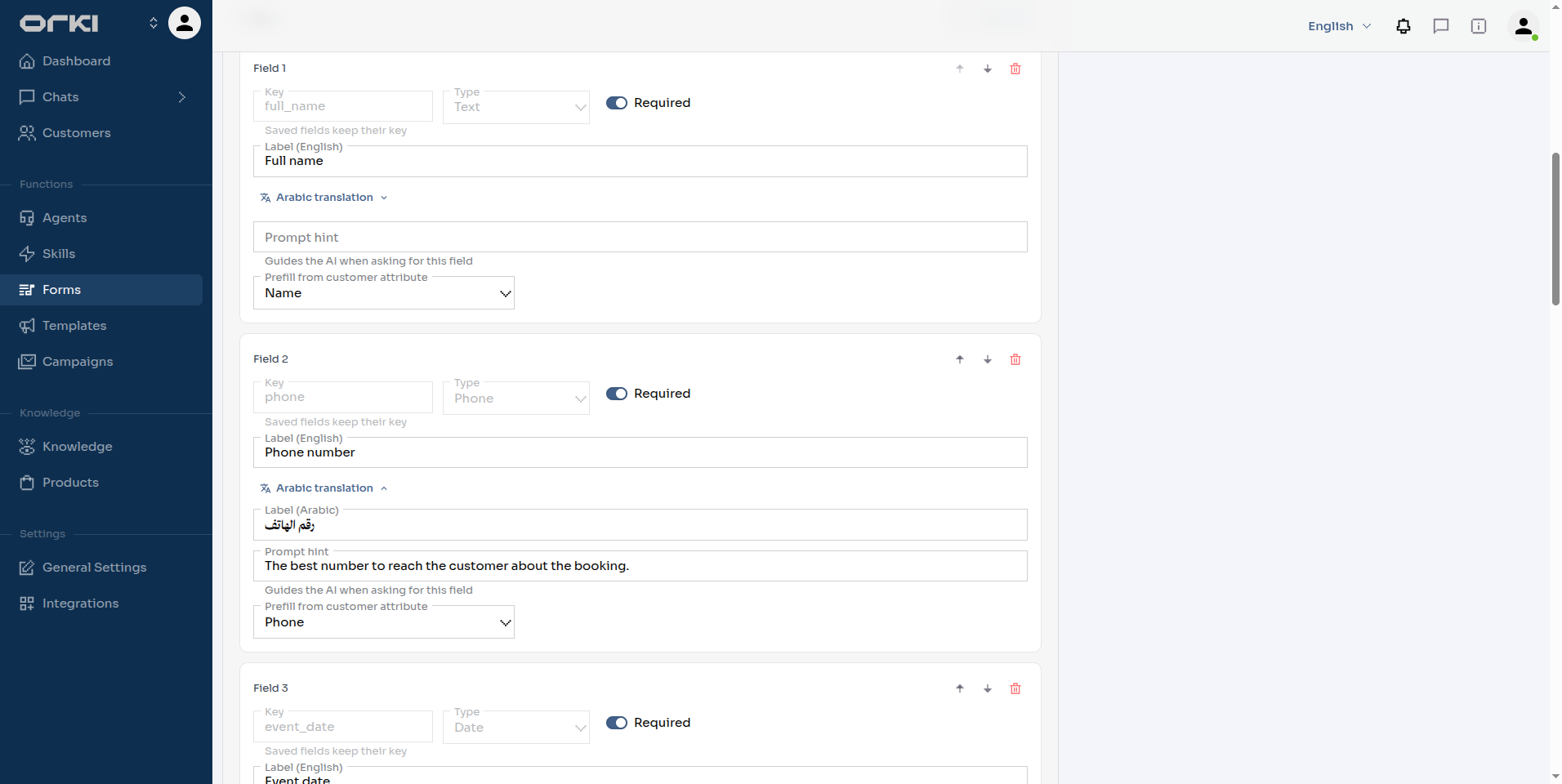
| Field setting | What it does |
|---|---|
| Key | snake_case, unique within the form. Saved fields keep their key. |
| Label (English / Arabic) | What the field is — this is also how the agent understands it, so "Event date" beats "Date 1". |
| Type | One of the nine types below. |
| Prompt hint | Optional guidance for how the agent asks — "A rough estimate is fine." |
| Required | The agent keeps politely pursuing required fields; optional ones are asked once and can be skipped. |
| Prefill from customer attribute | Bind the field to Name, Email, Phone, Location, or Language — if the value is already on the customer profile, it is filled silently and never asked. |
| Validation | Optional rules the platform enforces on every answer — see Validation Rules. |
- Click Save.
Field types
| Type | Collects | Notes |
|---|---|---|
| Text | A short free-text answer | |
| Multiline text | Longer free text | Good for "anything else we should know?" |
| An email address | Validated — the agent re-asks if it isn't a valid address | |
| Phone | A phone number | Validated |
| Number | A number | Toggle Allow decimals for amounts like 12.5 |
| Date | A calendar date | The customer can say "next Friday" or "25 September" — it's stored as a proper date |
| Date & time | A date with a time | "Tomorrow at 5pm" works — the agent reads the time from the conversation and it's stored with your local timezone offset |
| Single choice | One option from a list | Each option has a Value (stored) and a Label (what the agent and customer use) |
| Multiple choice | Any number of options | Same value/label model |
| Yes / No | A boolean | "Is the venue indoors?" |
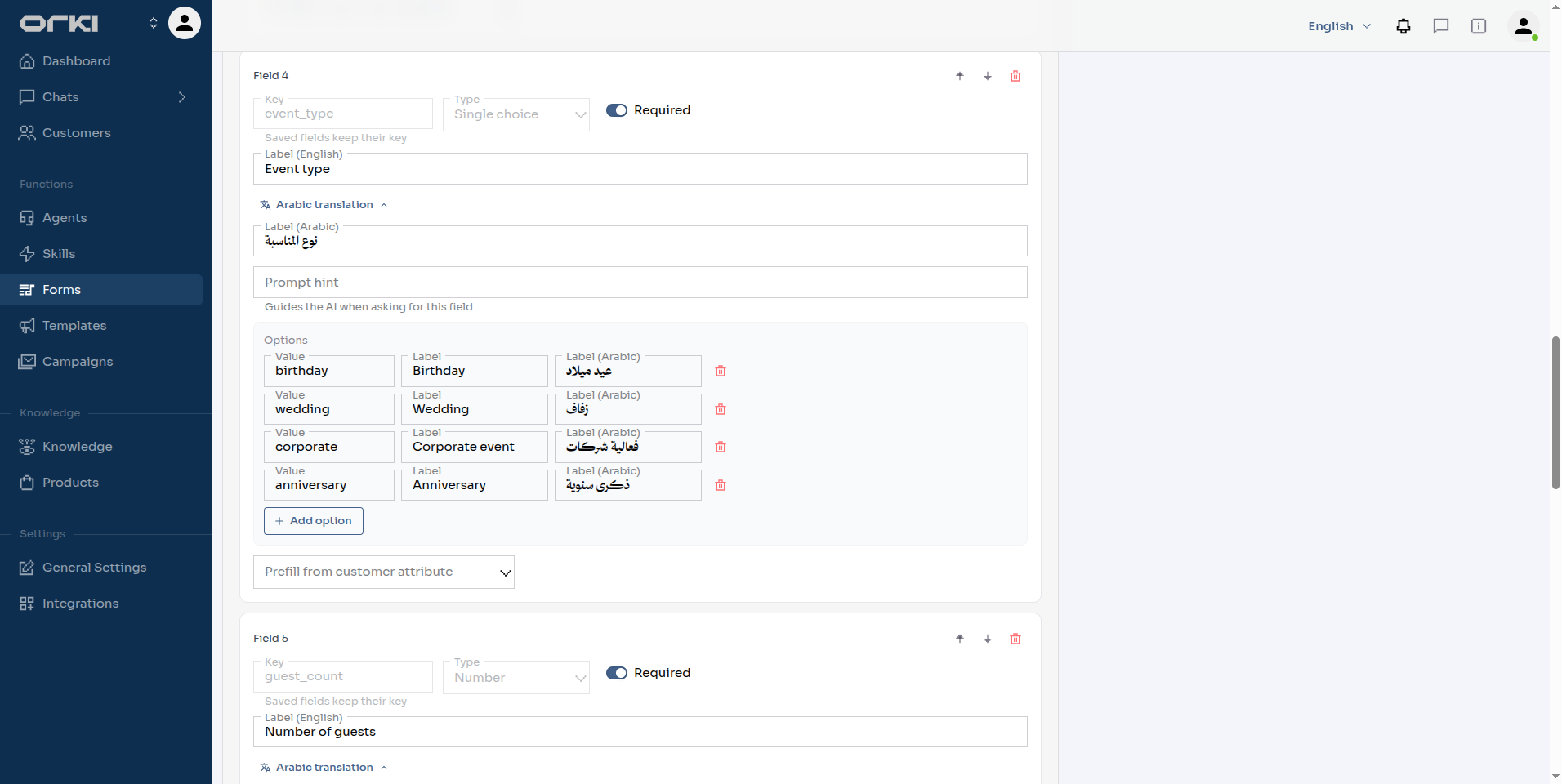
The customer never sees a list — they answer in their own words, and the agent maps "it's for our office opening" onto the Corporate event option. Keep labels in plain customer language, and keep the list short.
Validation Rules
Each field can carry rules the platform enforces on every answer — an invalid value is never stored, no matter how the conversation goes. The available rules depend on the field type:
| Field type | Rules |
|---|---|
| Number | Minimum and maximum value |
| Text, Multiline, Email, Phone | Min/max length · a Format (regular expression) with a Format hint |
| Date, Date & time | Allow past / allow future · earliest and latest date, in days from today |
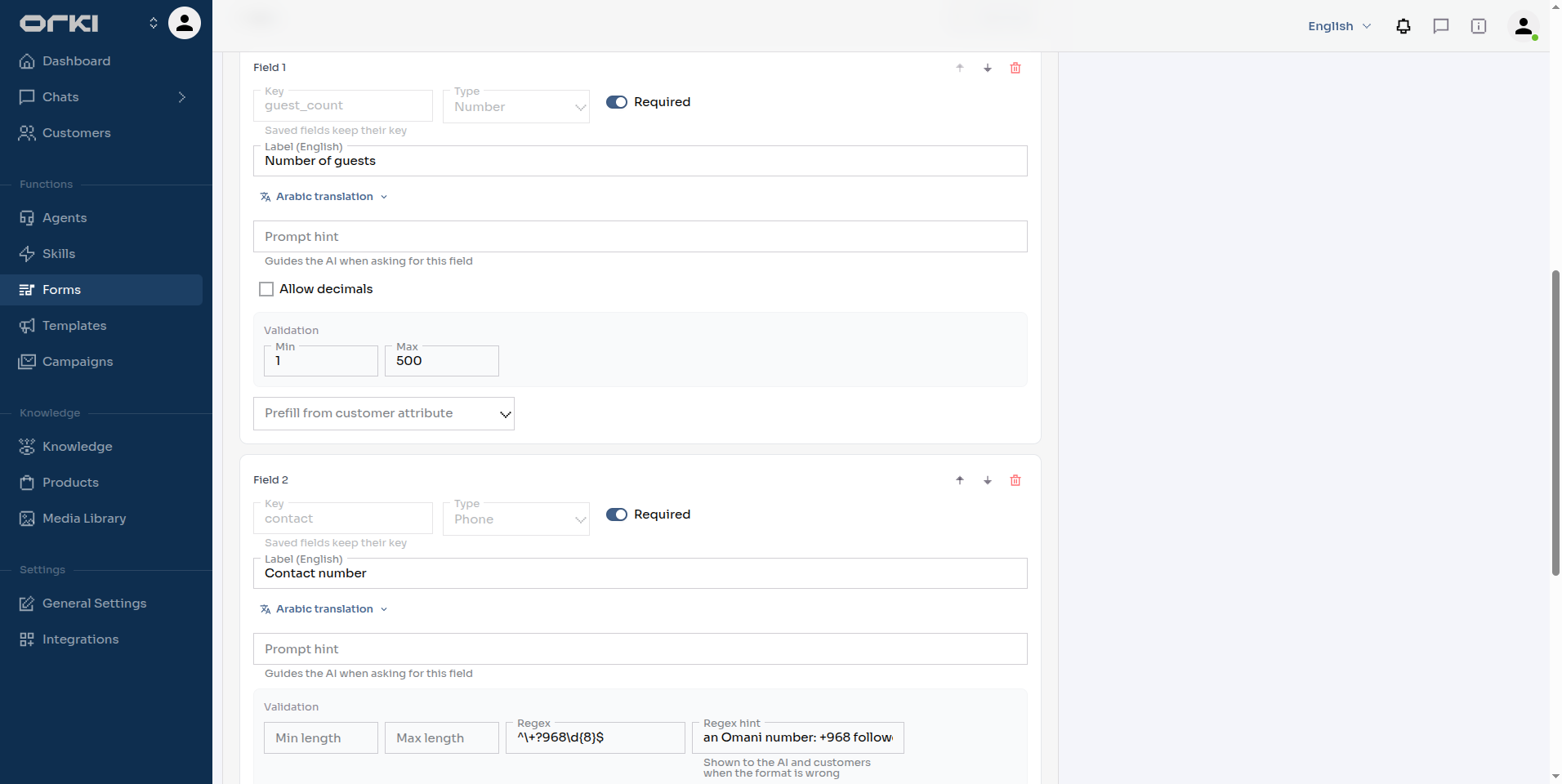
Rules change how the agent behaves at every step:
- It asks correctly the first time. The agent knows each field's rules up front — for a 1–500 guest limit it asks "how many guests (up to 500)?" rather than discovering the limit later.
- It refuses invalid answers with the reason. "We're expecting 1200 guests" gets a polite pushback quoting the rule, and nothing is stored until the customer gives a value that passes.
- Corrections are picked up the moment the customer restates the value.
Balloon Bliss's setup-visit form uses all three kinds: guests limited to 1–500, the contact number must match the Omani format, and the visit date must be in the future and within 30 days.
The regular expression itself never reaches the AI or the customer — only the Format hint does, both when the agent asks and when it explains a rejection. Write it the way you'd say it: "an Omani number: +968 followed by 8 digits".
Form Settings That Change How the AI Behaves
Two toggles at the bottom of the settings section decide how a submission ends:

| Toggle | Off | On |
|---|---|---|
| Confirm before submit | The response completes automatically the moment every required field has a valid answer. Best for lightweight signups. | The agent reads the answers back to the customer and waits for an explicit "yes" before the response is marked completed. Best for bookings and anything a human will act on. |
| One response per customer | A customer can fill the form again — each completed fill is a new response row. | Once a customer has one completed response, the agent won't collect the form from them again. Best for one-time signups. |
Balloon Bliss uses both patterns: Event decor booking confirms before submit (a wrong date is expensive), while Delivery updates signup completes silently and allows only one response per customer.
There is also the Enabled switch on the form card — a disabled form is invisible to every agent, mid-conversation, immediately.
Editing a Form
Open the pencil icon on the form card. Everything is editable until the form has responses — then three protections kick in so old answers keep meaning something:
- Removing a field retires it. The answers are kept; retired fields disappear from the agent's view but stay available in responses and CSV export behind the Include retired fields toggle.
- Field types are locked. An "Event date" that was a date can't silently become free text. Add a new field instead.
- Keys never change — the form key or a saved field's key.
- Validation rules stay editable at any time; a changed rule applies to new answers only, never retroactively.
Deleting a form permanently deletes all of its responses. Export the CSV first if you need the history.
The number of forms you can create depends on your plan. Editing, collecting, and responses are never limited.
Next Steps
- Collecting a Form in Conversation — assign the form to an agent and teach it when to collect
- Form Responses — review, filter, and export everything your agents have collected
- Custom Attributes — for facts about the customer rather than one-off submissions