Workflows
A workflow chains your API tools into one step-by-step flow that the agent calls as a single tool. You decide the exact order, pass each step's response into the next, branch on the results, and control precisely what the agent gets back at the end.
Use a workflow when one customer request needs several dependable steps — the agent triggers it with the inputs, and the flow itself runs deterministically, the same way every time.
Our example: Balloon Bliss wants Bella to answer "what's the status of my order?" The flow looks up the order in the shop's order API, checks whether the total qualifies for free delivery (orders above 20 OMR in Muscat), and returns a clean answer either way. We'll build it as a workflow called check_order.
Where to Find It
Integrations → Workflows in the sidebar.
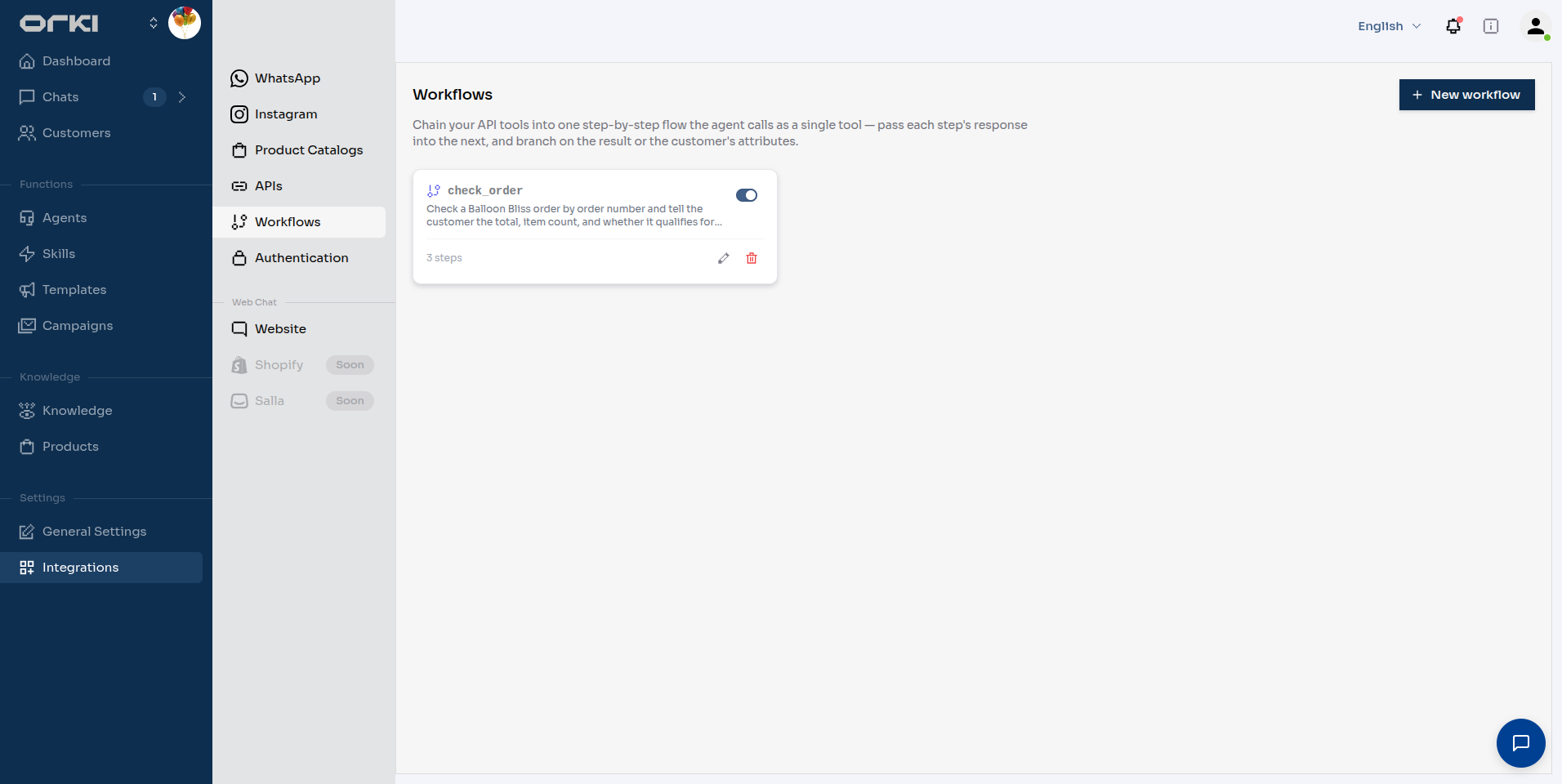
Each card shows the workflow's steps and an enable/disable toggle. Click New workflow to open the builder.
The Builder
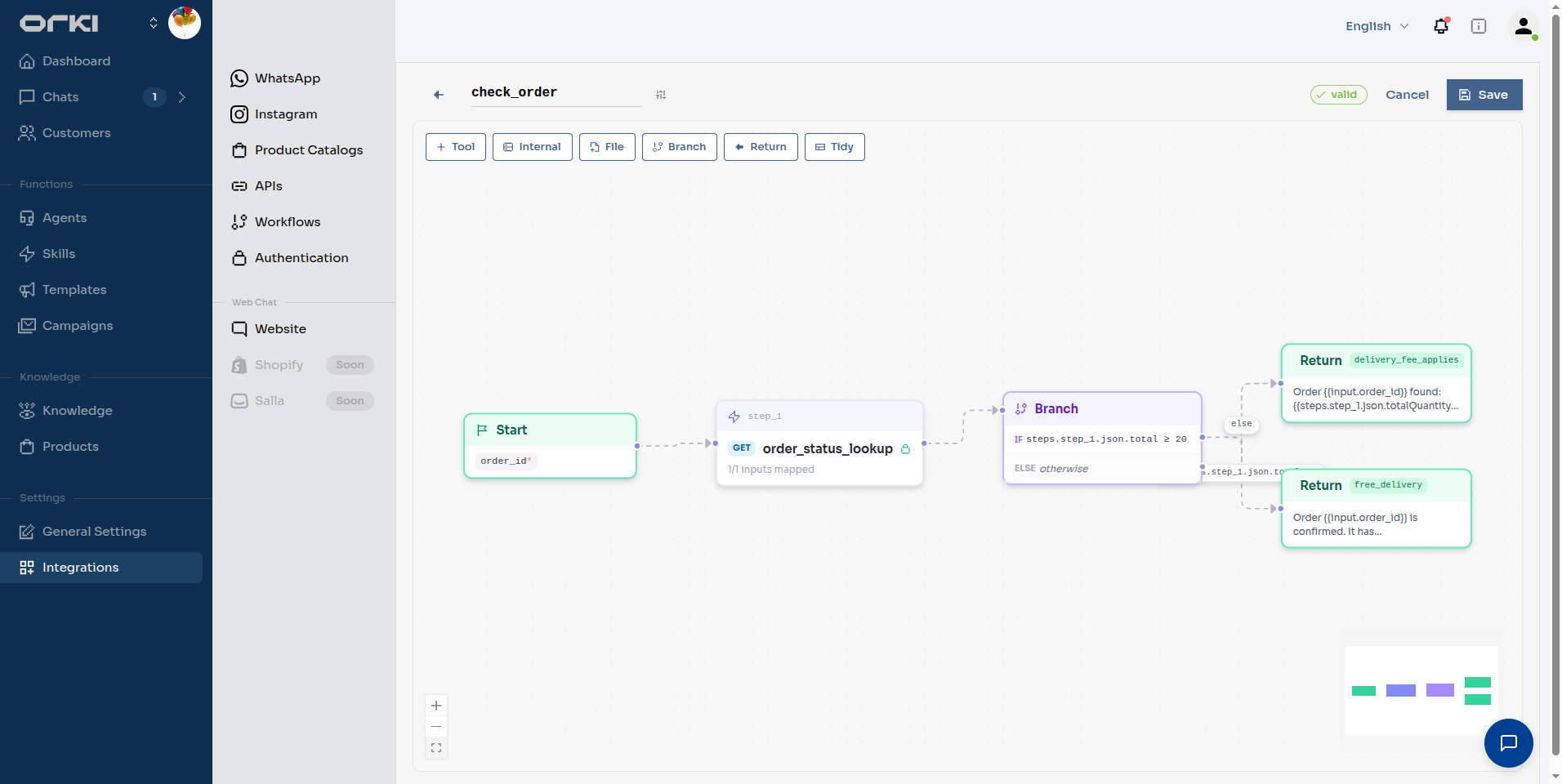
The builder is a visual canvas. You add nodes from the toolbar, connect them, and configure each one in a side drawer.
Node types
| Node | What it does |
|---|---|
| Start | Entry point. Holds the workflow's inputs — the parameters the agent fills when it calls the workflow. |
| Tool | Calls one of your API tools, with its inputs mapped from workflow inputs or previous steps. |
| Internal | Runs a built-in platform action mid-flow (e.g. handover, send media). |
| Transform | Computes a value between steps — trim a string, format a date, sum an array — without calling anything. |
| Loop | Repeats a body for each item in an array. |
| Parallel | Runs two or more branches at the same time and waits for them all. |
| Sub-flow | Calls another one of your workflows and uses its result. |
| Timer | Waits — for a duration, or until a specific time — then carries on. |
| Ask | Pauses and lets the agent ask the customer something, then resumes with their answer. |
| File | "Convert to File" — turns a base64 payload from a previous step into a downloadable file the agent can send. |
| Branch | If/else routing. Cases are checked top-to-bottom; the first match wins, otherwise the else path is taken. |
| Return | Ends the workflow with a message written for the agent — a clear result, not a raw data dump. |
| End | Plain terminal node for flows that don't need a custom return message. |
Building check_order Step by Step
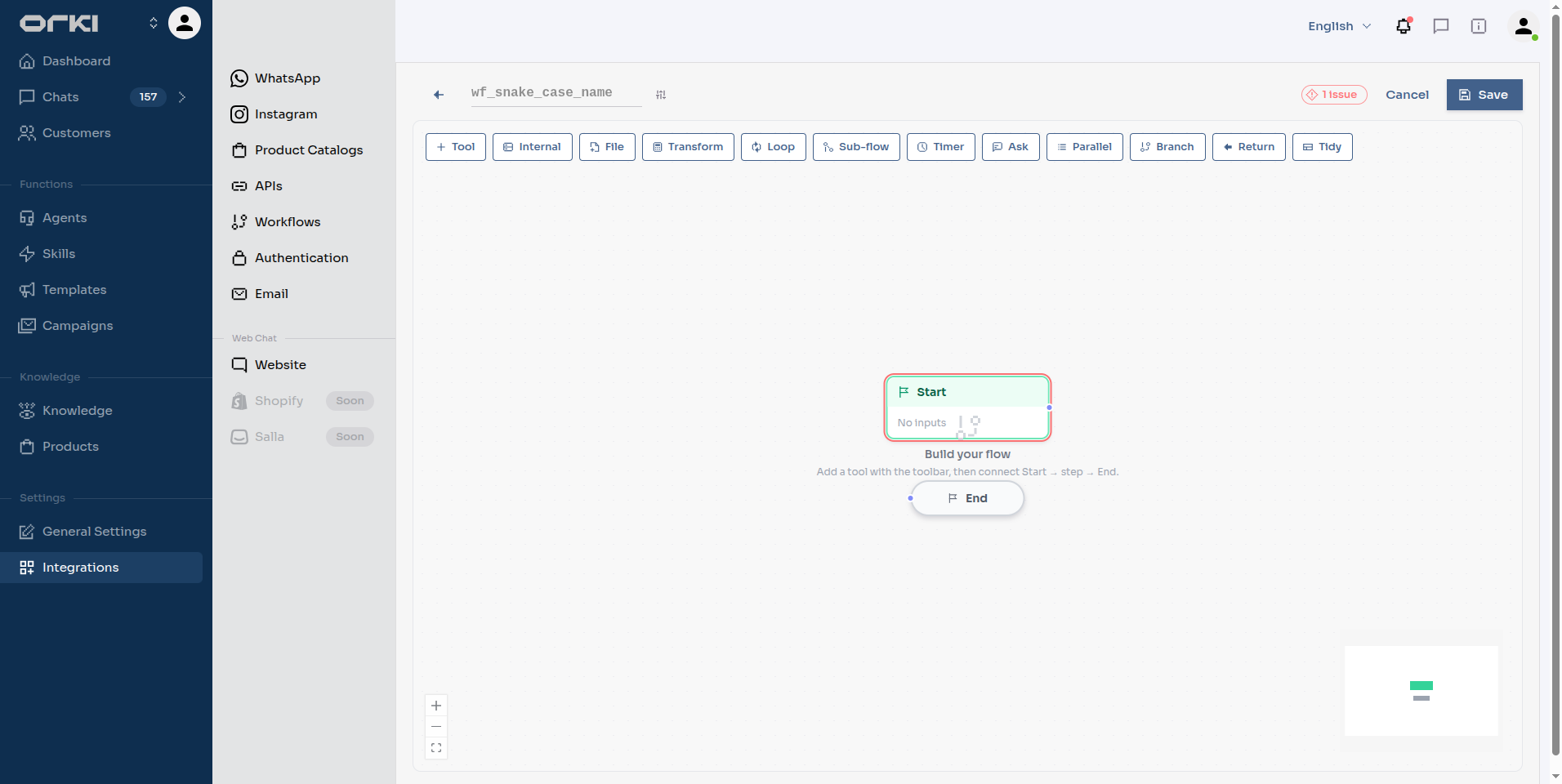
1. Name it and add the entry input
Type the name in the header — snake_case, like a tool name: check_order.
Click the Start node and add an input component: order_id. This is what the agent will ask the customer for. Steps reference it as {{input.order_id}}.
Then open Workflow settings (the settings icon next to the name) and write the Description — this is how the agent decides when to use the workflow, so make it concrete:
Check a Balloon Bliss order by order number and tell the customer the total, item count, and whether it qualifies for free Muscat delivery. Use when a customer asks about the status or delivery of an existing order.
The description is required — Save won't submit without it.
2. Add the tool step
Click Tool in the toolbar and pick your API tool (here: order_status_lookup, which calls the Balloon Bliss order API).
The drawer shows the tool's inputs and an Available data panel with everything you can feed into them — entry inputs and customer attributes ($name, $phone, …). Drag a pill onto an input, or type the reference directly:
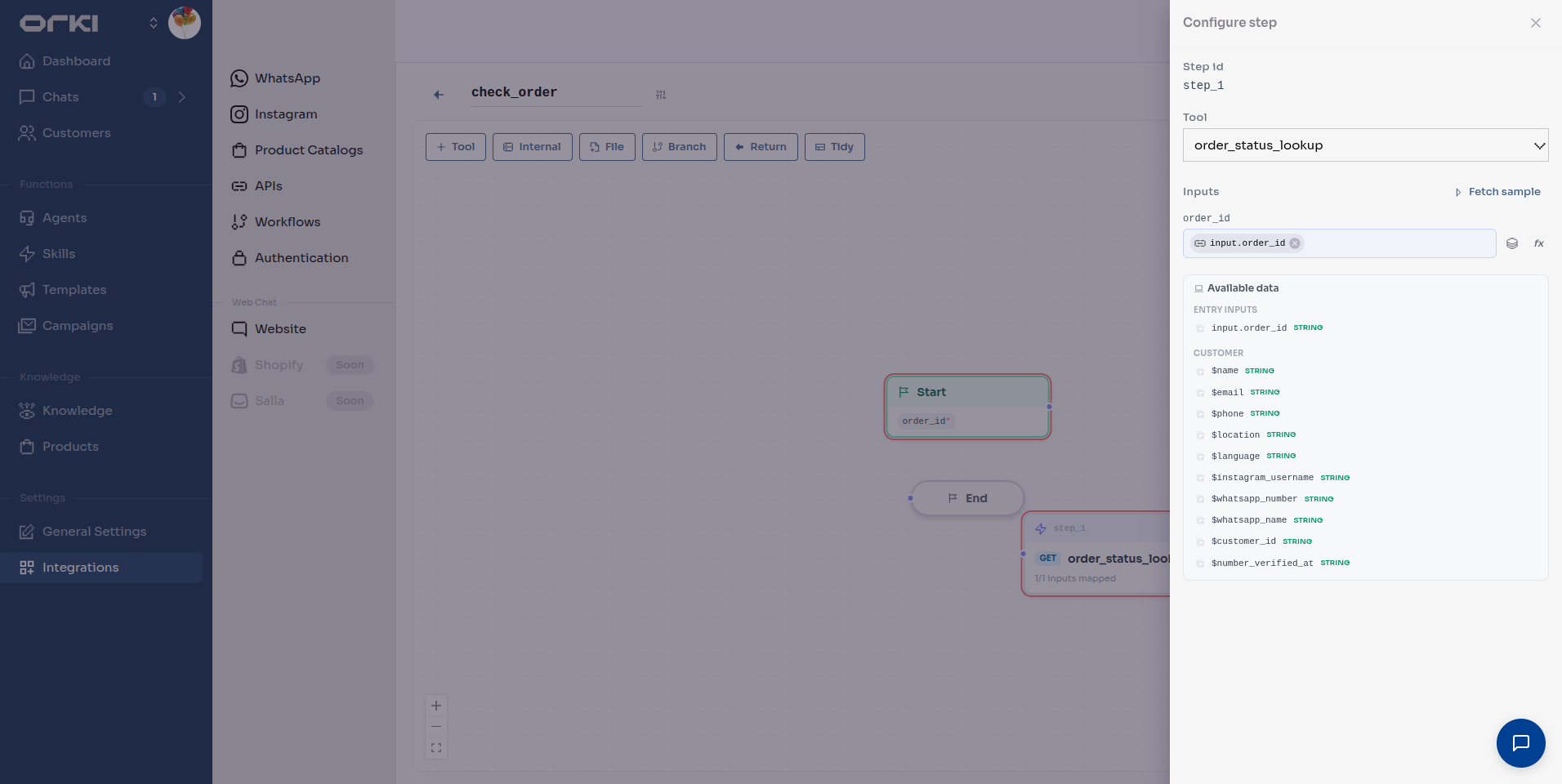
Here we map the tool's order_id input to {{input.order_id}}.
Referencing step outputs. Every step's response is available to later steps as {{steps.<step_id>.json.<path>}} — for example {{steps.step_1.json.total}}. Use Fetch sample in the drawer to run the tool once and browse its real response fields.
3. Branch on the result
Add a Branch node and one case:
- Field:
steps.step_1.json.total - Type:
number - Condition:
≥ - Compare to:
20
If the order total is 20 OMR or more, the case path fires (free delivery). Anything else takes the else path.
4. Write the Return messages
Add a Return node for each path. The return message is what the agent reads — write it as the answer, using placeholders:
Free delivery path (outcome free_delivery):
Order
{{input.order_id}}is confirmed. It has{{steps.step_1.json.totalQuantity}}items and the total is{{steps.step_1.json.total}}OMR — it qualifies for FREE delivery across Muscat (orders above 20 OMR).
Else path (outcome delivery_fee_applies):
Order
{{input.order_id}}found:{{steps.step_1.json.totalQuantity}}items, total{{steps.step_1.json.total}}OMR. A 2 OMR delivery fee applies for Muscat orders under 20 OMR — suggest a small add-on to reach free delivery.
Each Return also takes an optional outcome slug (the agent can key off it) and optional curated data fields.
5. Connect and save
Wire: Start → tool step → Branch, then each branch handle to its Return. The header shows live validation — valid means every issue is resolved (unmapped inputs, unreachable nodes, cycles). Hit Tidy to auto-arrange the canvas, then Save.
Beyond a Simple Chain
check_order is three nodes. Real flows need a few more shapes.
Transform — reshape a value without an API call
Pick an output name, choose an operation, point it at a value. Operations cover strings (trim, slice, replace, split, regex_extract), numbers (add, round, number_format), dates (now, add_days, format_date, days_between), arrays (count, sum, filter, join, pluck, first) and generators (uuid, random_int).
Each operation writes a named output you reference like any step: {{steps.step_3.json.delivery_date}}.
Use it to format a date before putting it in a return message, or to total a list of line items — instead of asking your API for a second endpoint.
Loop — repeat for each item
Point it at an array, give it a body, and it runs once per item. Inside the loop, {{item}} is the current element and {{index}} its position. The output is a results array plus a count.
| Option | What it does |
|---|---|
| Max iterations | Hard cap, 1–25 |
| Continue on error | Collect failures and keep going instead of aborting the flow |
| Stop early when | An expression over {{result}} that ends the loop once satisfied |
Parallel — do several things at once
Two to five named branches run concurrently and join before the flow continues. The output is keyed by branch id. Continue on error records a failed branch and lets the rest complete.
Use it when steps don't depend on each other — checking stock and fetching delivery slots at the same time rather than one after the other.
Sub-flow — call another workflow
Runs one of your other workflows inline and hands back its ok, outcome, message and data. Good for logic several flows share — "verify this customer", "look up an order" — written once.
A workflow can't call itself, and nesting is limited to three levels.
Timer — wait
Either a delay in seconds (10 seconds to 30 days) or an absolute UTC time. The run is parked, not held open: Orki stores it and picks it up when the timer fires. Nothing is burning a connection in the meantime.
Ask — get an answer from the customer
Pauses the run and describes what to collect. The agent asks the customer in its own words, and when they reply, the flow resumes with the answer available as {{signal}}.
The text you enter is an instruction to the agent — "ask which delivery date they prefer" — not a message sent verbatim.
Making Steps Reliable
Two per-step options, in the step's drawer.
Retry on failure
"Retry on failure — transient network/timeout only." Set Attempts (0–5) and Backoff (ms).
The wording is precise and worth reading twice: this retries connection problems and timeouts only. A 400 or a 409 from your API is a real answer, not a blip, so it is never retried.
Undo on later failure
"Undo on later failure — rolls this step back if the flow fails afterwards."
Attach a compensating action — an API tool, an internal tool, or a transform — and if a later step fails, Orki runs the undo actions in reverse order, newest first.
This is what makes a multi-write flow safe. If a flow reserves stock, takes payment and then fails to book a courier, the reservation and the payment can be released instead of being silently stranded.
An undo action that fails is recorded, not retried forever. Keep undo actions simple and idempotent — cancel by reference, not by position.
Branch Conditions
The example used ≥, but the full set is available:
| Group | Operators |
|---|---|
| Equality | equals, not equals |
| Numbers & dates | >, ≥, <, ≤ |
| Text | contains, does not contain, starts with, ends with, matches (with *) |
| Sets | in, not in |
| Presence | exists, does not exist, is null, is empty, is not empty |
| Step results | step succeeded, step failed |
| HTTP | status equals, status in |
step succeeded / step failed are the ones people miss — they let you branch on whether the previous call worked, instead of guessing from its payload.
Internal Steps
The Internal node runs a built-in platform action mid-flow: handover_to_human, resolve_conversation, send_media_to_user, send_products, send_image_carousel, send_interactive_message, send_otp, update_customer_details, search_knowledgebase, product_search, track_order, get_instagram_post, set_follow_up.
Each is labelled with what it does to the conversation — read, writes, sends, or terminal.
handover_to_human and resolve_conversation are terminal: they change the chat's status, so nothing can run after them. Wire them straight to End.
Assigning to an Agent
Saving a workflow doesn't expose it to any agent. If the agent never triggers your workflow, check this assignment first — it's the most common miss.
- Go to Agents → (your agent) → Workflows
- Toggle the workflow on
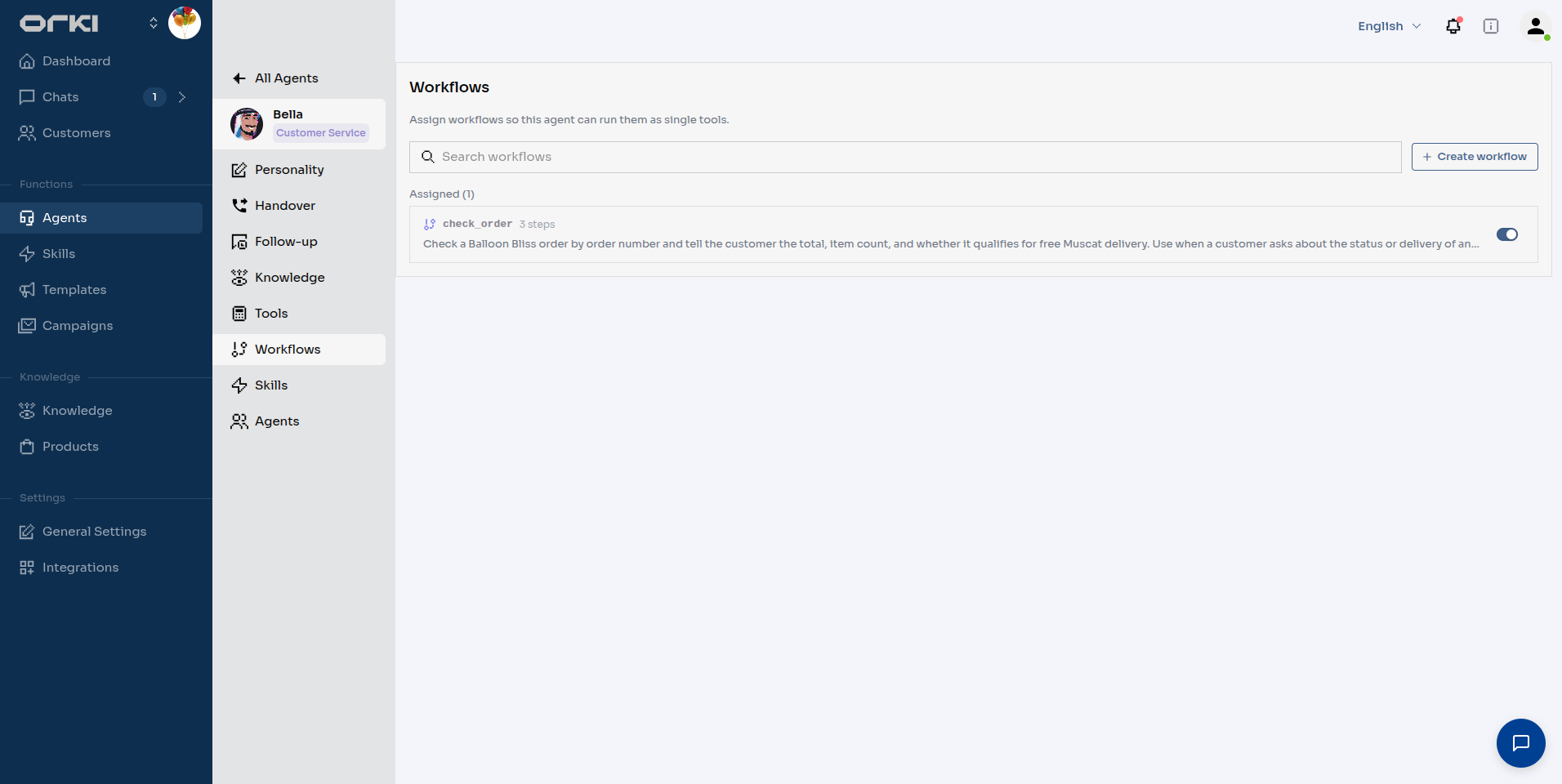
Workflow steps run their tools server-side — the tools themselves do not need to be assigned to the agent. If a tool should only ever run inside the flow (like order_status_lookup here), leave it unassigned on the agent's Tools tab so the agent can't call it directly and skip your branching logic. Only assign a tool directly when the agent should also use it on its own (like search_gift_addons for gift questions).
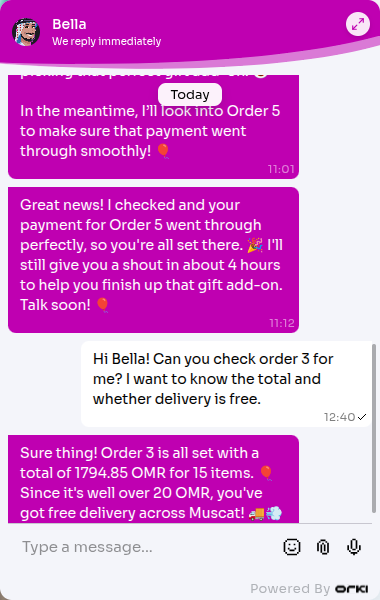
From the agent's point of view, check_order is now just another tool with one parameter (order_id). When Salim asks "what's the status of order 5?", Bella calls the workflow once and answers from its return message — she never sees the raw API response, the branching, or the delivery math.
Testing
Ask the assigned agent in the Playground (or your web chat) something that matches the description and confirm the reply uses the return message's facts. Here's Bella answering through check_order on the Balloon Bliss site:
Workflow Settings
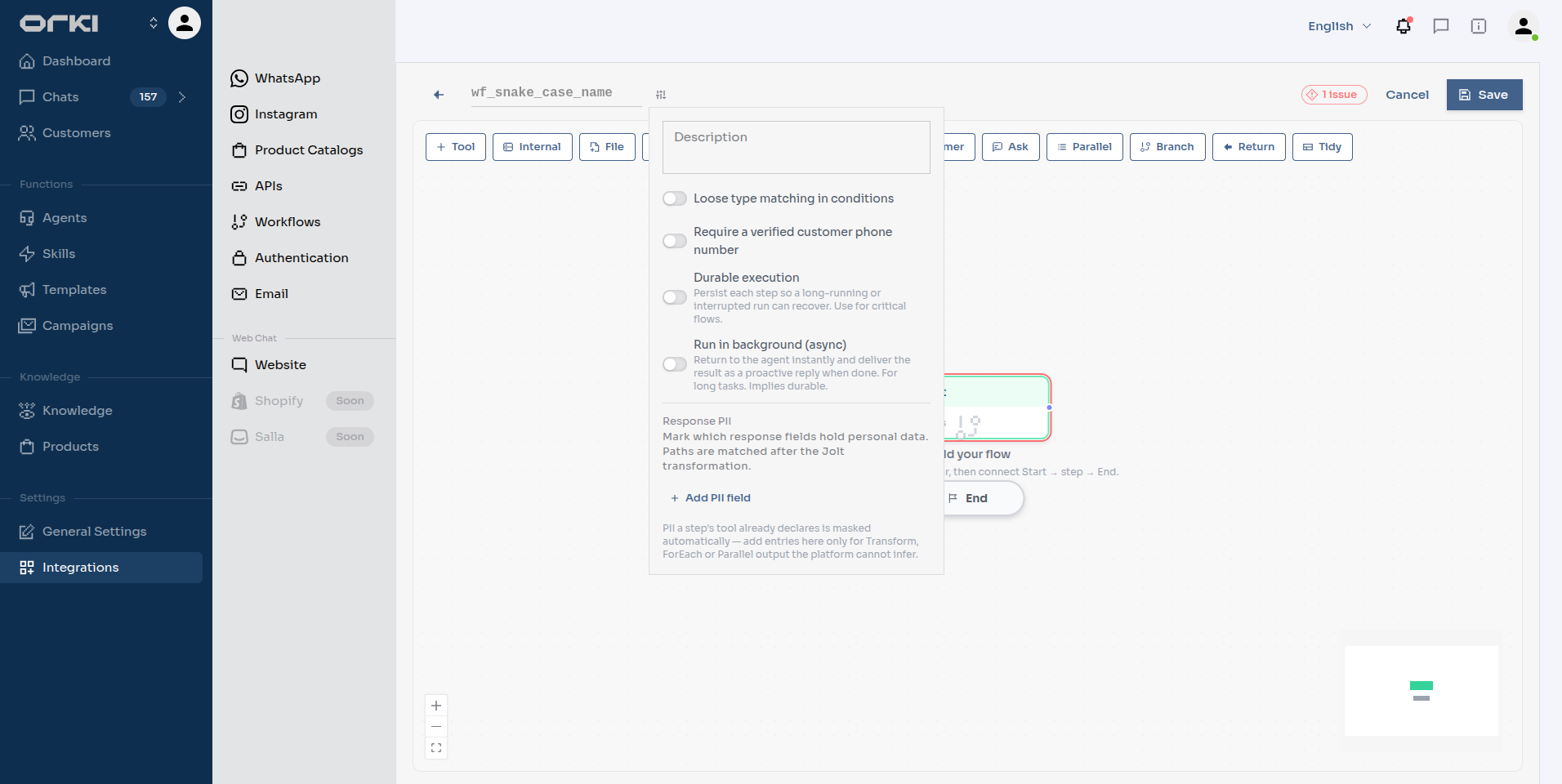
The settings icon next to the workflow name (tooltip: Workflow settings):
- Description (required) — the agent's trigger criteria.
- Loose type matching in conditions — lets branch conditions compare
"20"(string) with20(number) instead of failing on type. - Require a verified customer phone number — gates the whole workflow behind OTP phone verification, same as the per-tool security option.
- Durable execution — "Persist each step so a long-running or interrupted run can recover." Required for anything that waits.
- Run in background (async) — "Return to the agent instantly and deliver the result as a proactive reply when done." Implies durable.
- Response PII — mark output fields that hold personal data.
Durable and background runs
A normal workflow runs while the agent waits, and must finish inside roughly 85 seconds.
Durable execution stores progress after each step, so a run can survive a restart — and a Timer or Ask node can park it for minutes or days and pick it up later. Any flow using those nodes needs it.
Run in background goes further: the agent is told immediately that the flow started, finishes its turn, and the result arrives later as a proactive message to the customer. Use it for work the customer shouldn't wait on — a report that takes a minute to generate, an overnight follow-up.
Chain of API calls that answers a question → neither. Flow with a Timer or Ask → Durable. Work that takes longer than a customer will sit and wait → Run in background.
Personal data in workflow results
Usually nothing to configure: each step is an API tool, and whatever that tool declares under Response PII is applied automatically and mapped onto the workflow's output.
Add entries here only for values a Transform, Loop or Parallel step produced, which can't be traced back to a tool. See Personal Data Masking.
Limits
Workflows are deliberately bounded so a flow can't run away mid-conversation.
| Limit | Value |
|---|---|
| Steps per workflow | 10 |
| Steps across a whole run, including sub-flows | 40 |
| Sub-flow nesting depth | 3 |
| Loop iterations | 25 |
| Parallel branches | 2–5 |
| Run time (non-durable) | ~85 seconds |
| Convert to File payload | 5 MB |
Hitting one is an error, not a silent truncation — see Troubleshooting.
Best Practices
- One job per workflow. "Check an order" and "cancel an order" are two workflows — the agent picks better between narrowly-described tools.
- Return messages are the product. Spend your effort there: state the outcome plainly and include the numbers the agent should repeat.
- Branch for the customer-facing difference, not for every API status code. Two or three outcomes is usually plenty.
- Use Fetch sample before writing references — guessing JSON paths is the most common cause of empty placeholders.
- Names are snake_case and shown to the model —
check_orderbeatsworkflow_1.
Troubleshooting
- Save does nothing — check the issues chip in the header, and make sure the Description in Workflow settings is filled.
- A placeholder comes out empty — the JSON path doesn't match the step's real response; verify with Fetch sample.
- The agent never calls the workflow — sharpen the description ("Use when a customer asks about…") and confirm it's assigned to the agent and enabled.
- The tool step fails on a new domain — external domains must be whitelisted; see the note in Creating API Tools.
- The run stops with a step-limit or time-budget error — the flow is too big for one synchronous run. Split shared logic into a Sub-flow, or turn on Run in background.
- "Customer not verified" — the workflow has Require a verified customer phone number on and the customer hasn't completed OTP. Have the agent verify first, or turn the requirement off.
- A Timer or Ask node never resumes — those nodes need Durable execution switched on in Workflow settings.
- A step fails intermittently on a slow API — add Retry on failure. Remember it only retries network errors and timeouts, never a 4xx.
- A failed flow left half its writes in place — add Undo on later failure to the steps that write.
Next Steps
- Creating API Tools — the building blocks workflows chain together
- Authentication for API Tools — attach credentials to the tools your steps call
- Personal Data Masking — control what the AI sees in workflow output
- System Events — push events from your backend to the agent