System Events
System Events let your backend tell your AI agent that something happened in the real world — a payment came through, an order shipped, a booking was confirmed — and let the agent react inside the customer's existing conversation.
Where Webhooks notify your systems about things happening in Orki, System Events are the opposite direction: your systems notify the agent.
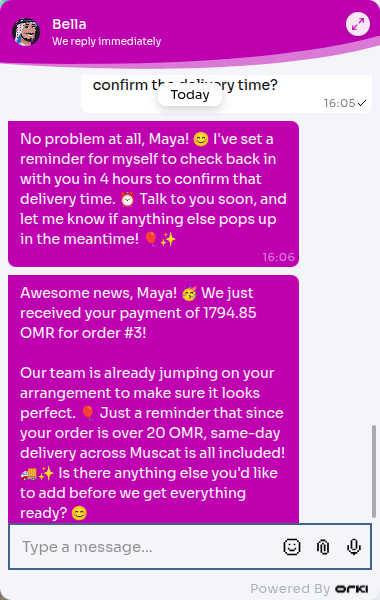
Throughout this guide we'll use our example business Balloon Bliss: when a customer pays for a balloon order, the shop's order system fires a payment_received event, and the AI agent Bella thanks the customer and confirms the order — without the customer having to ask.
How It Works
- You define an event once in the dashboard (its name, what the agent should do, and what data comes with it).
- Your backend calls one API endpoint whenever the event happens, pointing at a customer or chat.
- Orki delivers the event to the AI agent handling that customer's chat, and the agent reacts according to the mode you chose.
The Three Modes
| Mode | What happens | Use it for |
|---|---|---|
| Notify | The agent reads the event as context — it does not message the customer. | Marking a customer VIP, noting an internal status change the agent should remember. |
| Notify & Respond | The agent reads the event and replies to the customer in the live chat. | "Payment received", "Order shipped — let them know warmly." |
| Template Send | Sends a WhatsApp/Instagram template. If the messaging window is still open and an AI agent handles the chat, it behaves like Notify & Respond instead. | Reaching customers outside the 24-hour messaging window. |
Creating an Event: payment_received
Let's build the Balloon Bliss example.
- Go to Settings → System Events
- Click Add Event
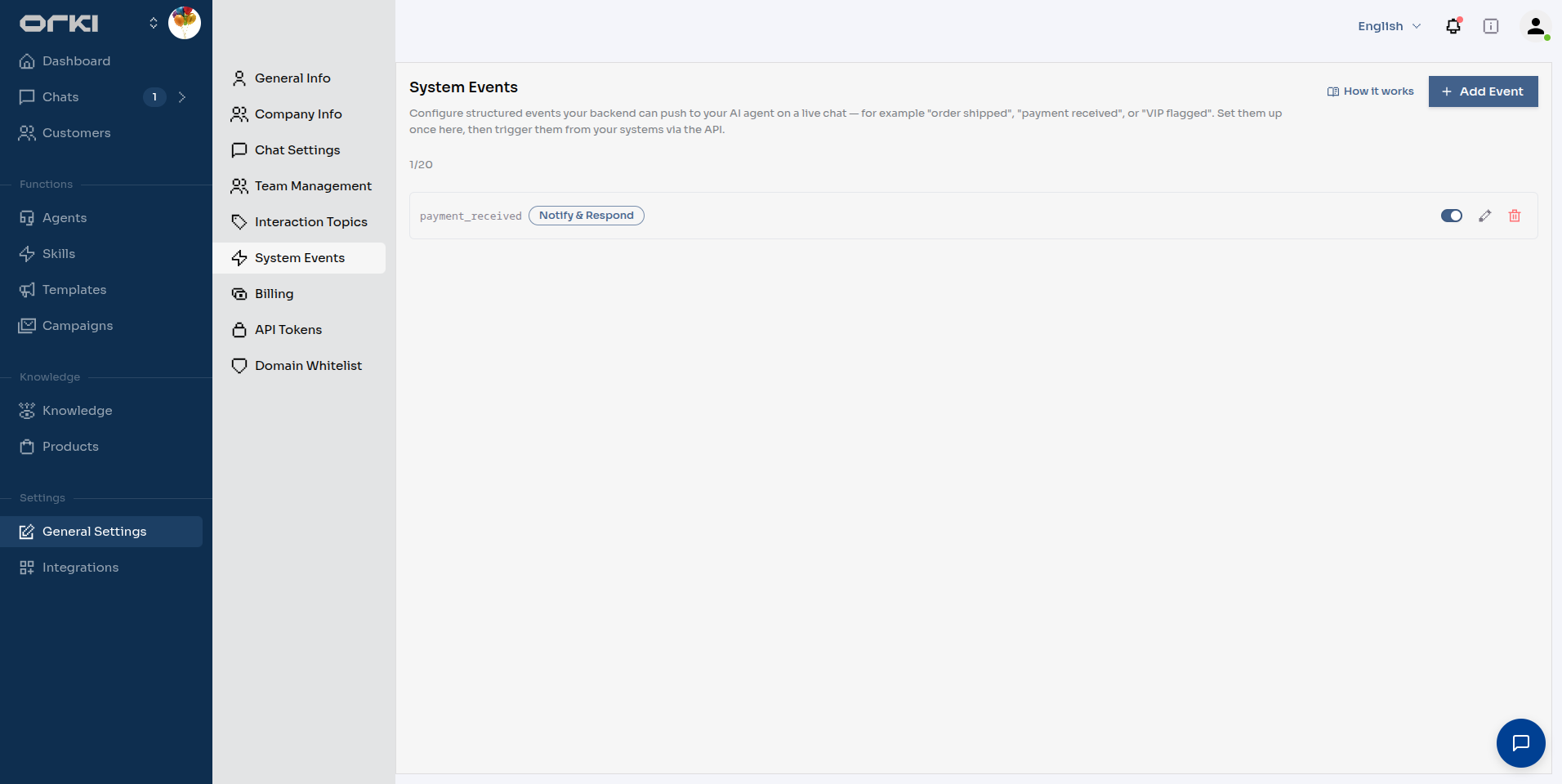
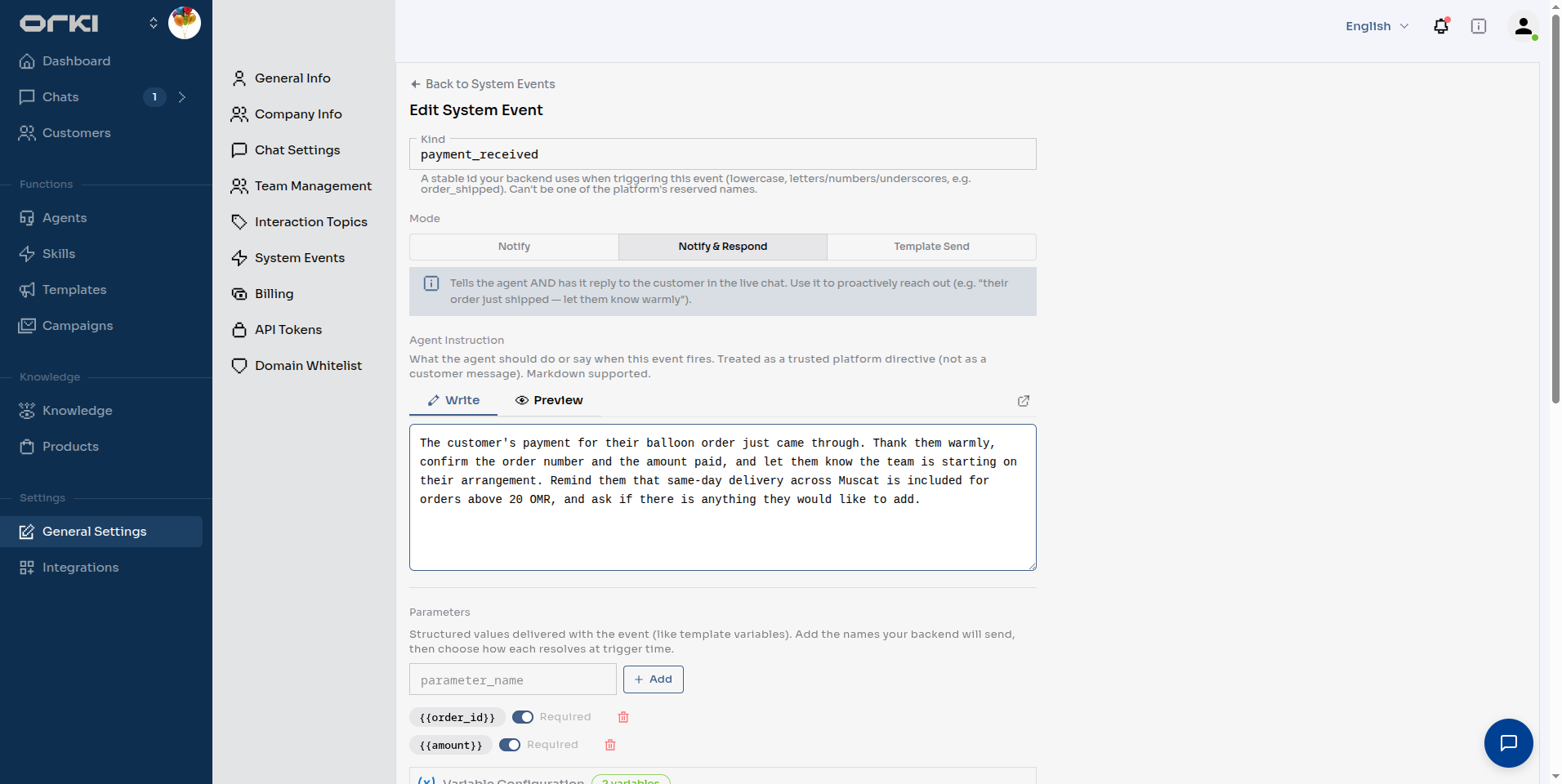
- Fill in the definition:
-
Kind —
payment_received. This is the stable identifier your backend uses. Lowercase letters, numbers, and underscores only, and it can't be one of the platform's reserved names. -
Mode — Notify & Respond, because we want Bella to proactively confirm the payment.
-
Agent Instruction — what the agent should do when the event fires. This is treated as a trusted platform directive, not as a customer message. For Balloon Bliss:
The customer's payment for their balloon order just came through. Thank them warmly, confirm the order number and the amount paid, and let them know the team is starting on their arrangement. Remind them that same-day delivery across Muscat is included for orders above 20 OMR, and ask if there is anything they would like to add.
-
Parameters — the structured values your backend sends with each fire. Add
order_idandamount, both Required. Each parameter also gets a resolution rule (Fixed value, Customer Attribute, or Conditional) used as a fallback — values you pass at fire time always override it.
- Click Create.
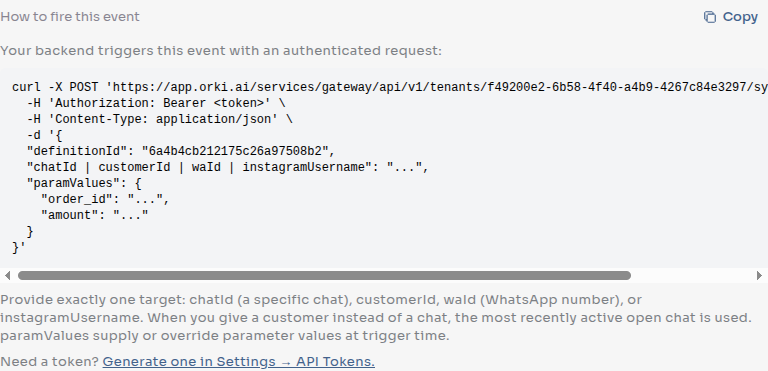
After saving, the event's edit page shows a ready-to-use "How to fire this event" snippet with your tenant ID and the definition ID already filled in:
Firing the Event from Your Backend
Everything below is a real, working sequence — run it from your order system, a payment webhook handler, or even a terminal.
Step 1 — Create an API token
Your backend authenticates with a service-account token:
- Go to Settings → API Tokens
- Click Create Token, give it a username (e.g.
balloon-backend) and a role
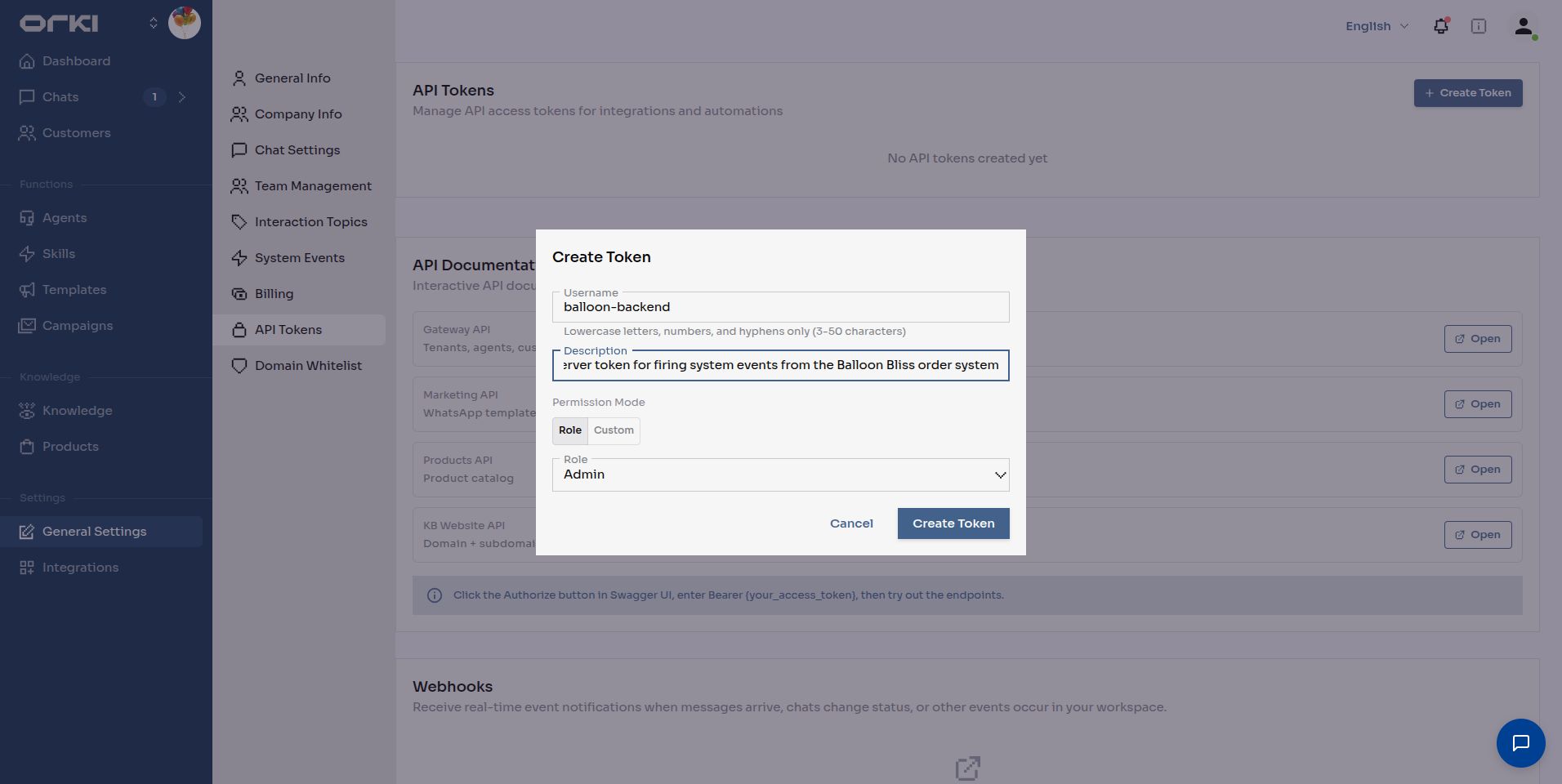
- Copy the Client ID and Client Secret — the secret is shown only once.
Exchange the credentials for a bearer token (valid for a few minutes — fetch a fresh one per batch of calls):
TOKEN=$(curl -s -X POST "https://iam.orki.ai/realms/orki/protocol/openid-connect/token" \
  -H "Content-Type: application/x-www-form-urlencoded" \
  -d "grant_type=client_credentials&client_id=svc-<tenant-prefix>-balloon-backend&client_secret=<YOUR_CLIENT_SECRET>" \
  | python3 -c "import sys,json; print(json.load(sys.stdin)['access_token'])")
Step 2 — Find the customer
The fire call needs a target. You give it exactly one of:
| Target | When to use |
|---|---|
chatId | You already know the exact chat. |
customerId | You know the customer — Orki picks their most recently active open chat. |
waId | WhatsApp customers — target by phone number. |
instagramUsername | Instagram customers. |
Balloon Bliss customers chat through the website widget, so there's no phone number or Instagram handle to target — we look the customer up by name/email first:
curl -s "https://app.orki.ai/services/gateway/api/v1/tenants/<TENANT_ID>/customers/?page=1&pageSize=5&search=salim" \
  -H "Authorization: Bearer $TOKEN"
The response includes the customer and their chats:
{
  "data": [
    {
      "id": "6a4b4f14c60e8eabd4e6eed0",
      "name": "Salim Al-Harthy",
      "email": "[email protected]",
      "platforms": ["web"],
      "platformChats": [
        { "platform": "web", "chatId": "6a4b4f14c60e8eabd4e6eed1" }
      ]
    }
  ]
}
data[0].id is the customerId we need. In a real integration you'd store this ID against your own customer record the first time you see it, instead of searching every time.
Step 3 — Fire the event
curl -s -X POST "https://app.orki.ai/services/gateway/api/v1/tenants/<TENANT_ID>/system-events/fire" \
  -H "Authorization: Bearer $TOKEN" \
  -H "Content-Type: application/json" \
  -d '{
    "definitionId": "<DEFINITION_ID>",
    "customerId": "6a4b4f14c60e8eabd4e6eed0",
    "paramValues": { "order_id": "3", "amount": "1794.85 OMR" }
  }'
A successful fire returns:
{ "status": "delivered", "mode": 2, "deliveredVia": "agent_request" }
and a moment later Bella proactively messages the customer in their web chat:
You can also add a one-shot "contextOverride" string to the body — extra text appended to the event's instruction for this fire only.
Response statuses
status | Meaning |
|---|---|
delivered | The event reached the agent (or the template was sent). |
skipped | Nothing was delivered — reason explains why (e.g. no open chat for the customer, no AI agent handling the chat, or a human has taken over). |
failed | Delivery errored — check the reason and retry. |
Best Practices
- Keep kinds stable. Your backend hardcodes the kind/definition — treat renames as breaking changes.
- Fire by
customerIdunless you track chat IDs — Orki picks the customer's most relevant open chat for you. - Required parameters are your contract. If your backend can't always supply a value, mark the parameter optional and give it a Fixed fallback instead.
- Notify vs Notify & Respond: if the customer doesn't need to hear about it, use plain Notify — the agent still remembers the context for the rest of the conversation.
- Disable, don't delete. Toggle an event off while iterating on its instruction; your backend keeps firing harmlessly (fires on a disabled event are skipped).
Troubleshooting
skippedwith "no chat for target customer" — the customer has no open chat. For WhatsApp templates outside the window, use Template Send mode instead.skippedwith "AI is paused" — a human agent has taken over that chat; the event won't interrupt them.- 401 from the fire call — bearer tokens are short-lived; fetch a fresh one.
- The agent's reply ignores your parameters — reference them in the Agent Instruction (e.g. "confirm the order number and amount paid") so the model knows they matter.
Next Steps
- Webhooks — the opposite direction: get notified when things happen in Orki
- API Tokens — token management and the interactive API docs
- Workflows — let the agent call your APIs directly