Personal Data Masking
Your customers send you real things: civil IDs, IBANs, phone numbers, full names. Most of that has to pass through an AI model to be useful — and for a lot of businesses, that is exactly the part legal wants to talk about.
Orki's personal data masking removes that problem at the source. Customer details are replaced with numbered placeholders before the AI model ever sees the message. The real values stay inside Orki. When the AI answers, or calls one of your APIs, the real value is put back automatically.
Two things are true at the same time, and both matter:
- The AI never receives the raw value. It sees
[CIVIL_ID_1], not98765432. - The customer never notices. They asked about their civil ID; they get their civil ID back.
Masking protects the hand-off to the AI model and controls what your own team can read. It is not at-rest encryption of your customer records — the real values are still stored in Orki so that replies, tools and exports keep working.
Turning It On
Settings → Company Info, then scroll past Company Details to the Personal data masking card.
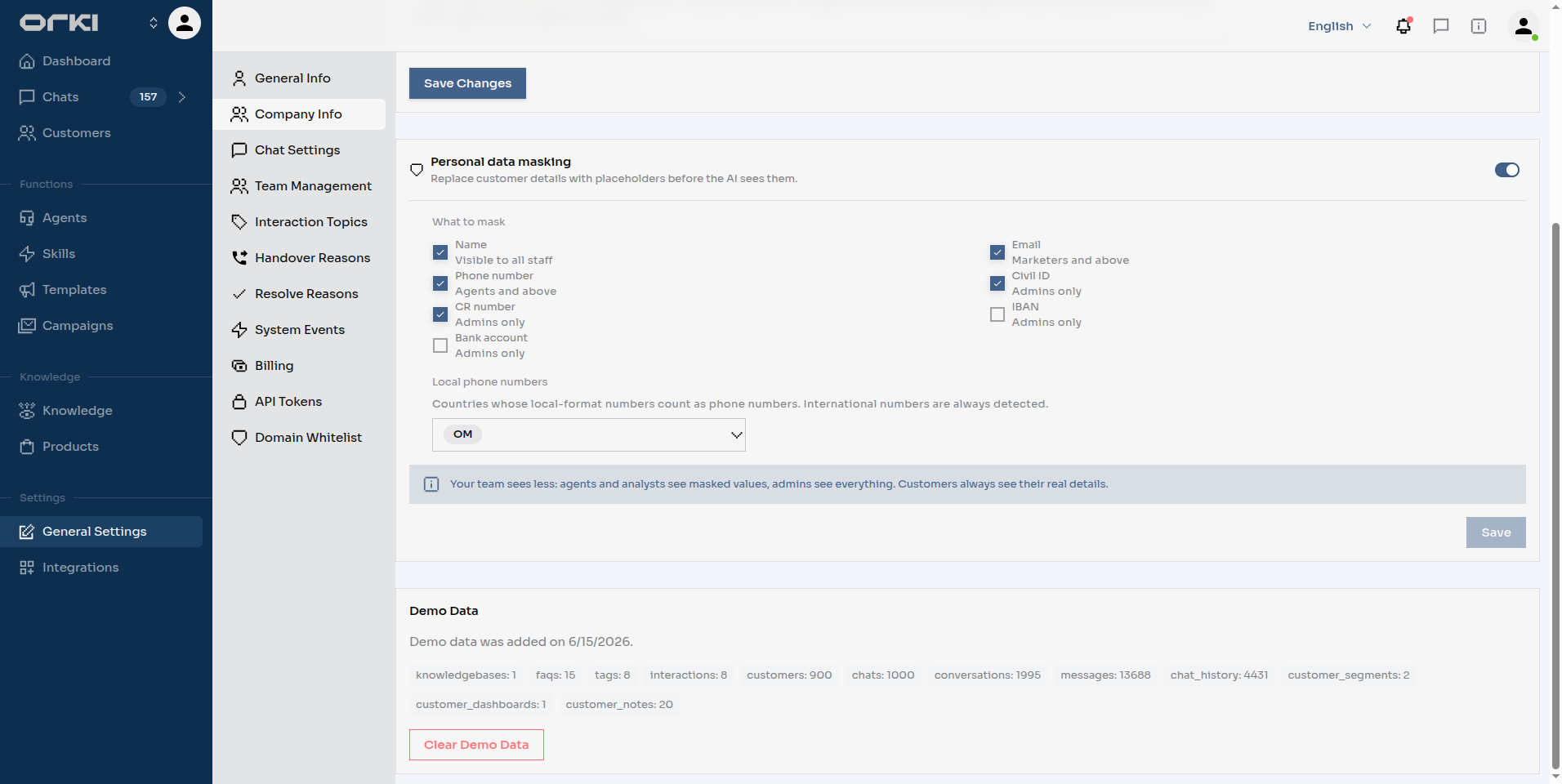
- Flip the switch in the top-right corner of the card.
- Under What to mask, tick the types you want masked. At least one is required — with none ticked you'll see "Select at least one type of personal data to mask." and Save stays disabled.
- Under Local phone numbers, pick the countries whose local-format numbers should count as phone numbers. Defaults to
OM. International numbers (+968…) are always detected regardless of this list. - Click Save.
It takes effect immediately — the next customer message is masked.
The card is editable by users with tenant-profile write access. Everyone else sees a read-only On / Off chip.
What Can Be Masked, and Who Can Read It
Masking is not all-or-nothing. Each type has a sensitivity level, and each level maps to the roles allowed to read the real value in the dashboard.
| Type | Who sees the real value |
|---|---|
| Name | Visible to all staff |
| Marketers and above | |
| Phone number | Agents and above |
| Civil ID | Admins only |
| CR number | Admins only |
| IBAN | Admins only |
| Bank account | Admins only |
So a service agent handling a delivery question can see who they're talking to and call them back — but cannot read their civil ID or IBAN. A marketer building a segment can see names and emails, nothing more.
What a masked value actually looks like
Staff below the level don't get a blank. They get a shape-preserving mask, which keeps the conversation readable and still lets someone confirm the last digits with a customer:
| Type | Shown as |
|---|---|
a****@t****.com | |
| Phone (international) | +968****336 |
| Phone (local) | ****336 |
| Name | A**** A**** K**** |
| Civil ID · CR · IBAN · Bank account | 1234**** |
Every read resolves to the role of the person reading it, and admins are at the top level — so to an admin, a masked conversation and an unmasked one look identical.
This is the single most common "it isn't working" report. To confirm masking, open the same conversation as a service agent or analyst.
There is no "reveal" button anywhere. Visibility is decided entirely by role at the moment of the request, which means it can't be clicked around.
What Happens During a Conversation
A customer writes:
My civil ID is 98765432 and my number is 94045336.
Here's the full journey:
| Step | What happens |
|---|---|
| 1. Message arrives | Orki detects the personal data and replaces it: My civil ID is [CIVIL_ID_1] and my number is [PHONE_NUMBER_1]. The real values go into a vault scoped to that one conversation. |
| 2. The AI reads it | The model receives the placeholder text only. It is told to treat a placeholder as the real value. |
| 3. The AI calls your API | If it passes [PHONE_NUMBER_1] to one of your tools, Orki swaps in the real number before the request leaves the platform. Your API receives real data. |
| 4. The AI replies | Any placeholder in the reply is resolved on the way out. |
| 5. The customer reads it | Real values. They never see a placeholder. |
| 6. Your team reads it | Resolved to that staff member's level — see the table above. |
Placeholders are numbered per type and per conversation, so [PHONE_NUMBER_1] refers to the same number every time it appears in that chat.
What Gets Detected
Detection runs on English and Arabic, including Arabic written in Latin letters (ana Ahmed).
Two design choices are worth knowing because they explain the behaviour you'll observe:
A bare number is never masked on its own. 98765432 in isolation is just a number. It becomes a civil ID only when the message labels it — "civil ID: 98765432", "رقمي المدني ٩٨٧٦٥٤٣٢". Identifiers with no checksum (civil ID, CR number, bank account) always require a label. This is what stops order numbers, ticket references and prices from being swallowed.
Some labels actively rule masking out. Words like billing, invoice, order, reference, serial, ticket, tracking (and their Arabic equivalents) push a nearby number out of scope. An account number that happens to be the same length as a national ID is not treated as one.
Things that prove themselves — an email address, an IBAN that passes its checksum, a number written +968… — are detected without needing a label.
If your business has an identifier that keeps getting caught — a 9-digit billing account, say — Orki can register it as never masked for your tenant, so no detection layer can ever touch it. Ask your Orki contact; it's deliberately not a self-service setting, because a wrong pattern there would silently expose a real identifier.
The Three Places You Declare Data Yourself
Detection reads customer messages. Everything else is declared explicitly — nothing is guessed, which is why an account number that merely looks like a phone number is safe.
API tool responses
When your API returns personal data, tell the tool which fields hold it. On the tool form, below Jolt Specification, use Response PII:
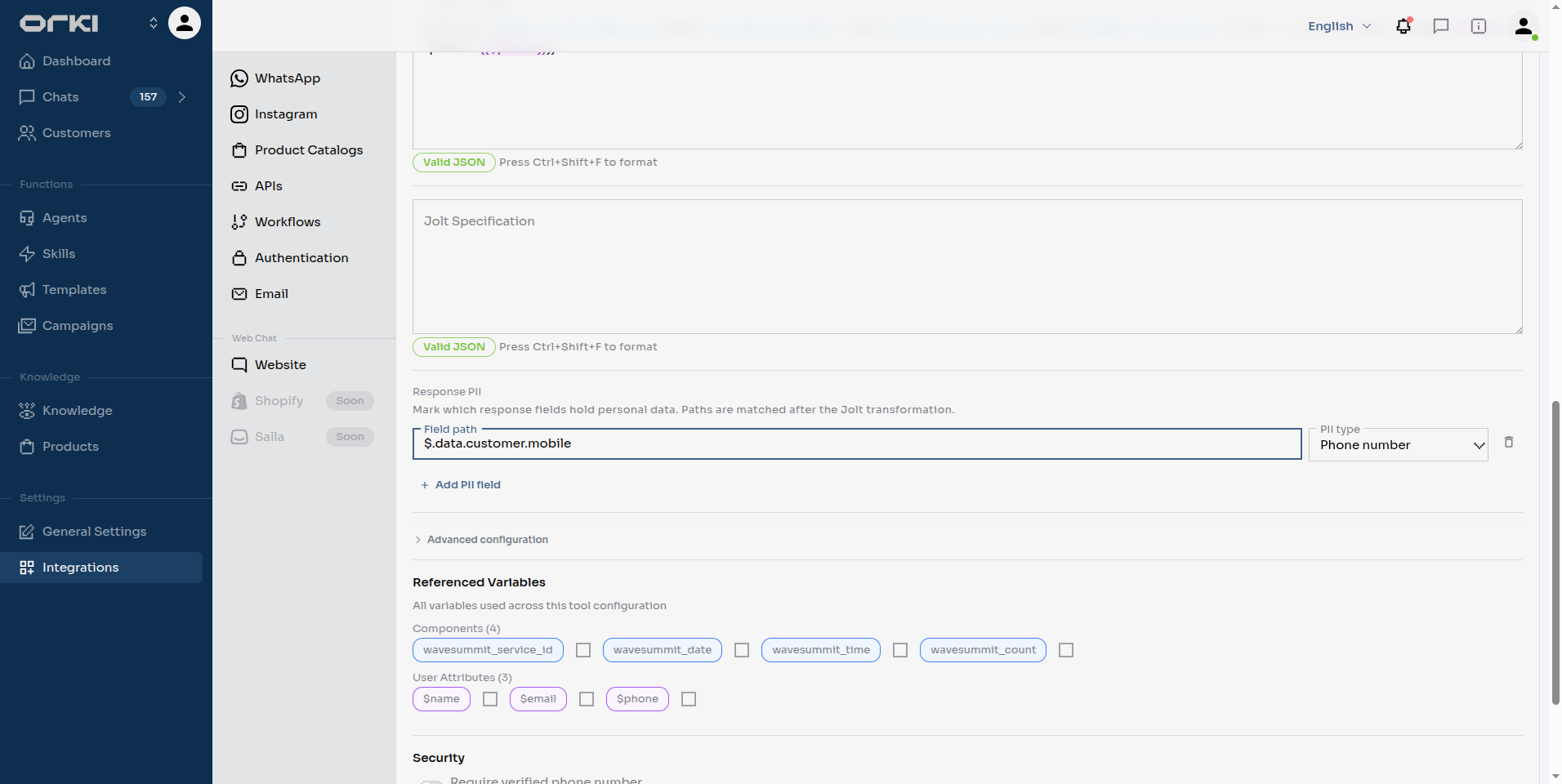
- Field path — a JSONPath such as
$.data.customer.mobile. Run the tool once with Test first and the field will be offered in a dropdown. - PII type — which of the seven types it is.
The in-app note matters: "Paths are matched after the Jolt transformation." Write paths against the response as your JOLT spec leaves it, not the raw upstream shape.
See Creating API Tools.
Workflows
Usually nothing to do. A workflow step is an API tool, so whatever that tool declares is applied automatically and rebased onto the workflow's output.
Add entries manually — in the builder's Workflow settings, under the same Response PII editor — only for values a Transform, Loop or Parallel step produced, which Orki can't trace back to a tool.
See Building Workflows.
Customer attributes
A custom attribute can be flagged as personal data. On the attribute dialog, set Personal data type (optional) — "Values of this attribute are hidden from dashboard users below the matching access level."
This one is about who on your team can read it, not about the AI.
See Customer Attributes.
Showing It to a Client
The demo lands or dies on one thing: having a second browser window logged in as a service agent. Without it there is nothing to see, because admins read everything.
Before you start: three tabs — the customer web chat, the dashboard as an admin, the dashboard as a service agent — plus the Company Info page.
1. Show the "before". With masking off, have the customer tab send:
My civil ID is 98765432, my IBAN is OM810180000001299123456,
and my billing account is 117620932.
In the service-agent window, everything is readable.
2. Turn it on. Company Info → Personal data masking → switch on → tick Civil ID, IBAN, Phone number, Email, Name → Save. Read the note on the card out loud: "Your team sees less: agents and analysts see masked values, admins see everything. Customers always see their real details."
3. Send the same message again in a new conversation. Now put the admin and service-agent windows side by side:
| Admin sees | Service agent sees | |
|---|---|---|
| Civil ID | 98765432 | 1234**** |
| IBAN | OM810180000001299123456 | OM81**** |
| Billing account | 117620932 | 117620932 — untouched |
The billing account is the line that convinces technical buyers: it's nine digits, it looks exactly like an identifier, and it is deliberately left alone because it was declared safe. A rule, not a guess.
4. Prove the customer is unaffected. In the customer tab, ask "what civil ID do you have on file for me?" The bot answers with the real number — even though the model only ever saw [CIVIL_ID_1].
5. Prove your APIs still work. Trigger a tool that takes the customer's phone number. The AI passes a placeholder; your API receives the real MSISDN.
6. Close on governance. Show the Response PII rows on the tool, and mention that permanent exclusions are held at the platform level, not by the tenant.
Limits and Answers to the Usual Questions
Which languages? English and Arabic, including Arabic in Latin script. Emails, IBANs and international-format phone numbers are detected in any language. Names in other languages are not.
Does it slow the conversation down? Detection adds roughly 100–500 ms to a customer message. Tool responses cost nothing extra — they're declared, not scanned.
What if detection is unavailable? The message is held and retried, never passed to the AI unmasked. A late reply is recoverable; personal data in a third-party model's context is not. Tenants with masking off are unaffected.
Does it work on WhatsApp, Instagram, email and web chat? Yes — identically. Masking happens in the message pipeline, before any channel-specific handling.
Can we see who viewed what? Configuration changes are recorded with the user who made them. Individual reads are not audited — visibility is enforced by role rather than logged per view.
Anything that stays unmasked on purpose?
- Notification emails to your staff contain real values.
- Customer attributes passed straight into one of your API calls stay raw — the AI is not in that path.
- AI-drafted reply suggestions are shown in full to the human agent reviewing them.
Does turning it on fix old conversations? No. It applies from the moment you save. Existing messages keep whatever form they were stored in.
Next Steps
- Creating API Tools — declare which response fields hold personal data
- Customer Attributes — flag an attribute as personal data
- Team Management — roles decide who reads what